How to Never Miss an Important iPhone Reminder Again
Never miss an important reminder again with iOS 26.2’s new alarm-style reminder feature. Turn tasks into loud alerts that always get your attention.
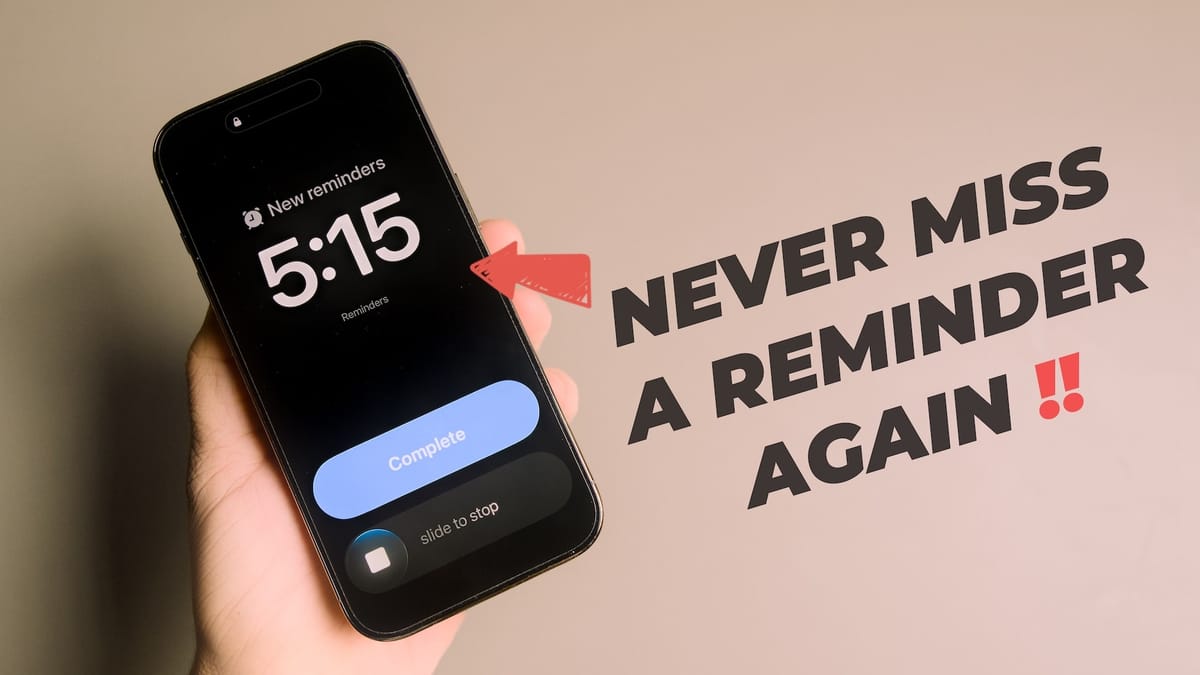
We have all missed an Apple reminder now and then because its notification sound is too quiet. Or maybe your iPhone is on mute when the reminder comes, and you don't even notice. While this doesn’t matter for regular tasks, missing an urgent task can hamper our day.
In this guide, I will show you how to set an iPhone reminder so you will never miss another urgent reminder again.
Alarm-style iPhone reminders in iOS 26.2
Apple has introduced a new alarm-style reminders feature with the iOS 26.2 update. When you have an urgent task, you can enable an alarm-style notification that functions just like a morning alarm, ensuring you don’t miss it. Here’s how to set it up.
Enable alarms for reminders
The first step is to enable the Alarms for Reminders feature. To do this:
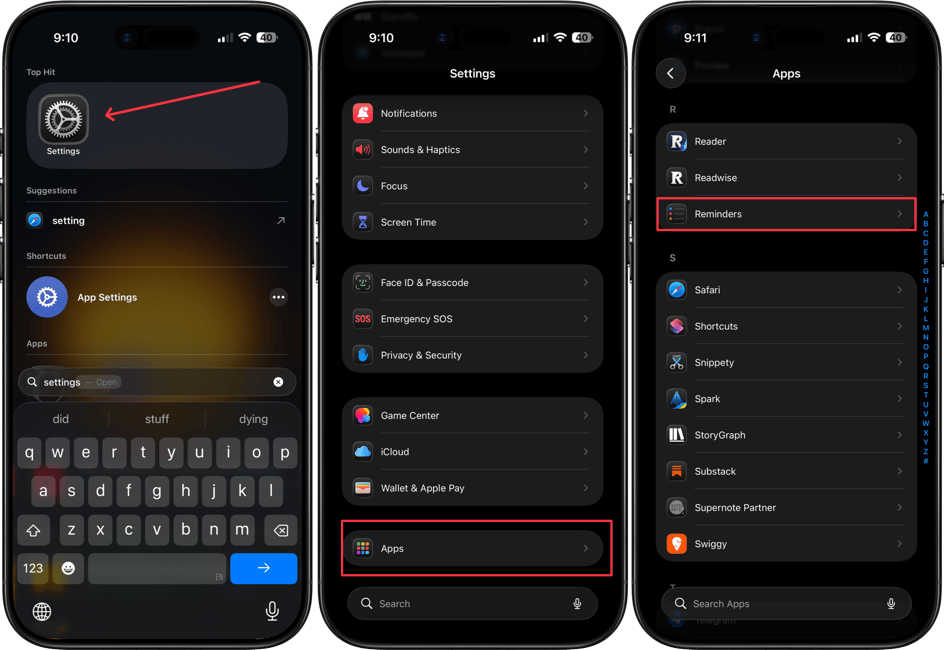
1. Launch the Settings app on your iPhone and go to Apps → Reminders.
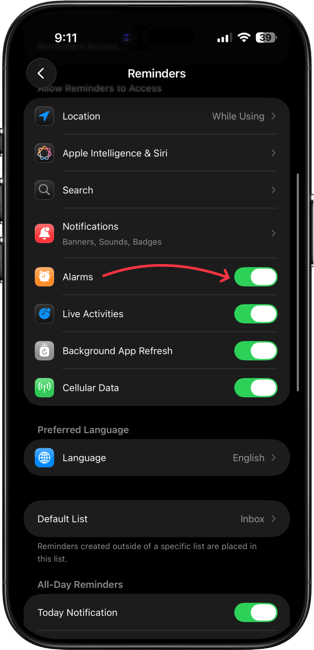
2. In the “Allow Reminders to Access” section, turn on the toggle for Alarms.
Create a reminder with an alarm notification
Now, let’s create a reminder and set the notification style to alarm. To do this:
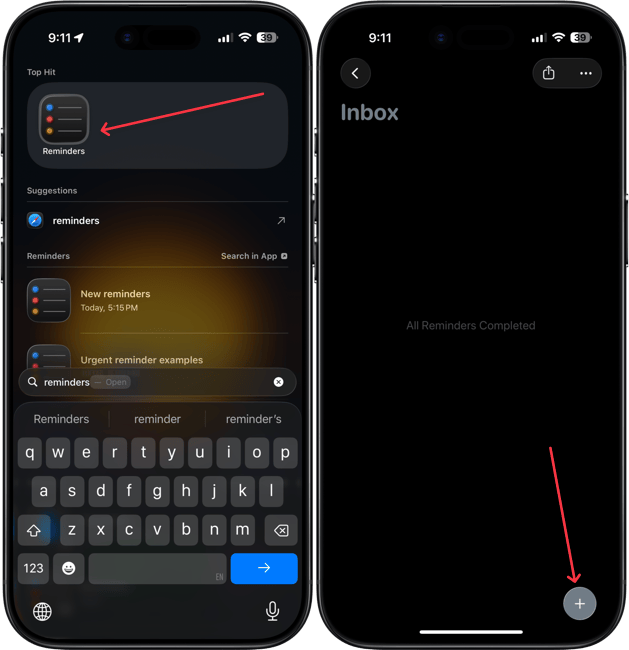
1. Launch the Reminders app on your iPhone and tap the plus (+) button in the bottom-right corner to create a new reminder.
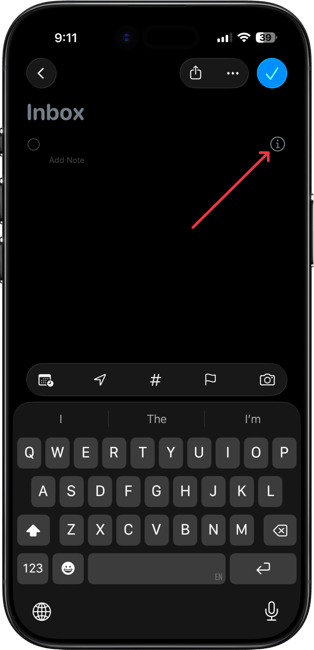
2. Tap the (i) button next to the reminder title to access the details page.
3. Now, turn on the Time toggle and set the time.
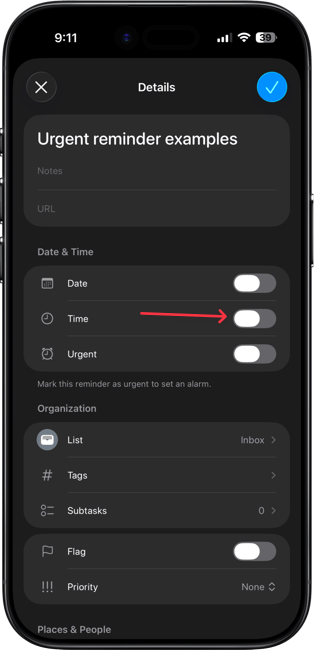
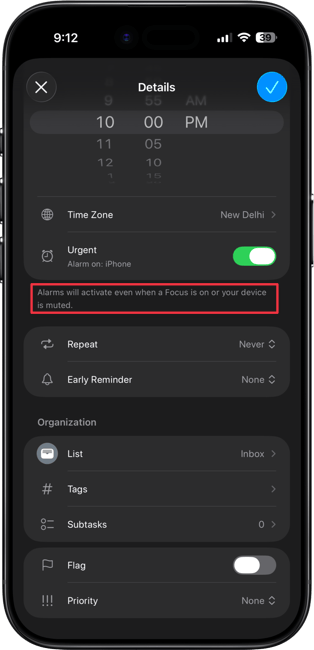
4. Now, turn on the toggle for Urgent. Notice that the text below this toggle reads “Mark this reminder as urgent to set an alarm,” so that’s what we will do.

One hidden benefit of this notification style is that the reminder alarms trigger even when your iPhone is on mute or in a focus session, ensuring you never miss the important reminders.
Bonus tip: show a 'Complete' button on reminder alarms
Here’s a bonus tip before you go. By default, the reminder alarm alert will show a snooze button like the regular alarms.
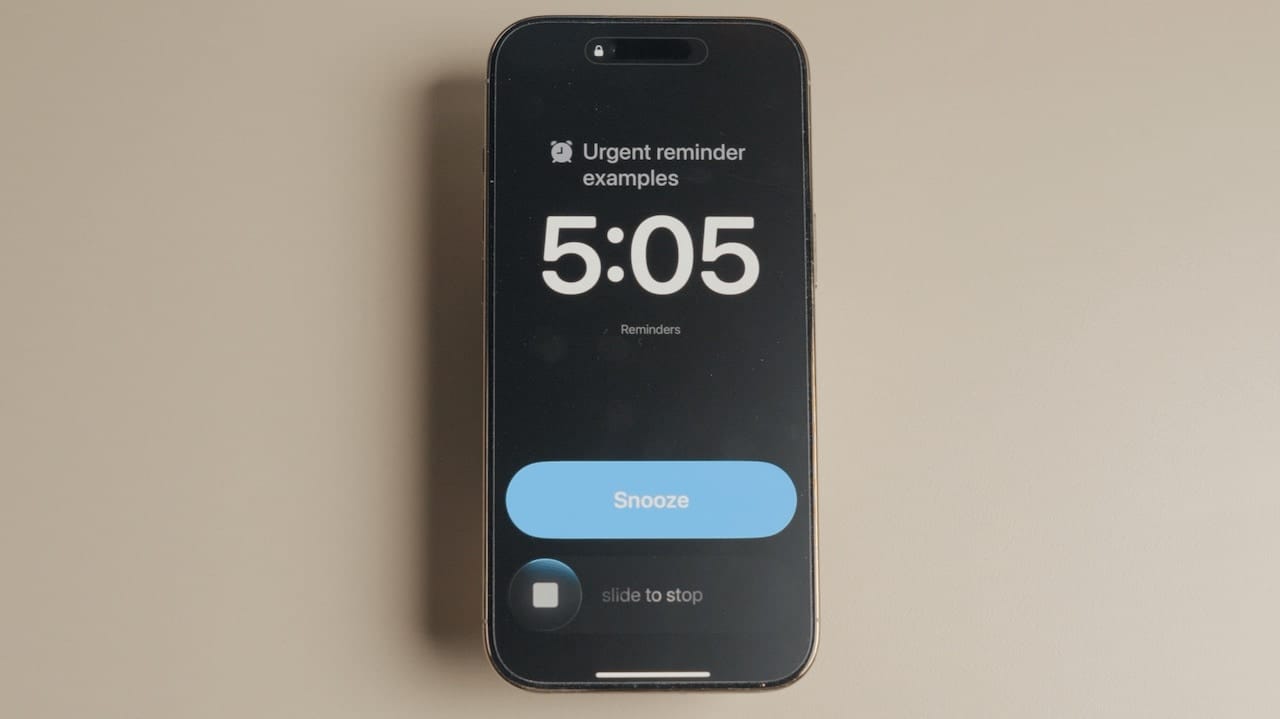
I prefer switching it to the Complete button because it lets me mark the task as finished without opening the app.
1. To do this, go to Settings → Apps → Reminders.
2. Scroll to the "Urgent Reminders" section, turn on the toggle next to Complete for Alarm.
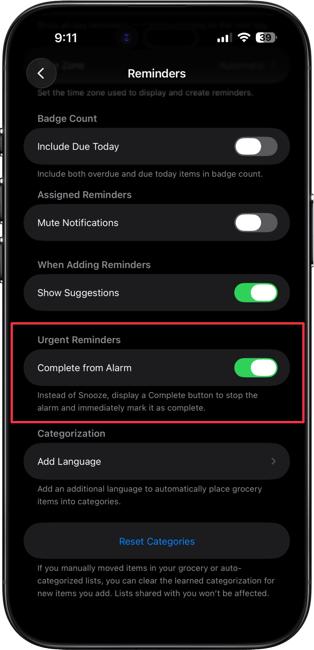
3. Here's how it looks.
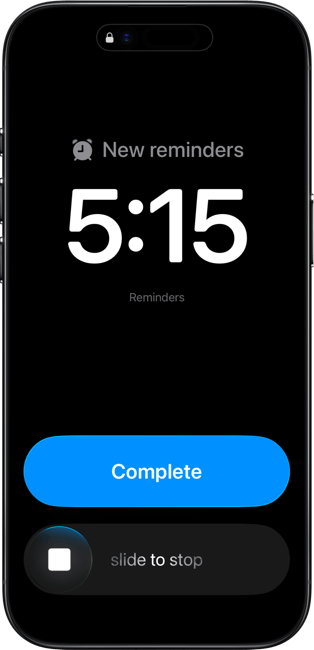
Never miss a reminder on your iPhone ever again
I love this new addition to iOS 26.2. With new features like the ability to create reminders from Apple Calendar and early reminder notifications, it seems Apple is focusing on making Apple Reminders the default choice for most iPhone users.