How to Stop MacBook Display from Dimming on Battery
macOS is quietly dimming your screen on battery. Here's how to stop it.
You may have noticed that when you unplug your MacBook from a power source, the display brightness dims slightly. macOS does this to extend the battery life of your Mac. It’s not an issue in low ambient lighting conditions, but it can cause viewing issues in broad daylight or harsh indoor lighting conditions.
Thankfully, you can stop your MacBook’s display from dimming when you disconnect it from power and are using it on battery.
Stop MacBook from dimming when unplugged
You can stop your MacBook display from dimming when you unplug it from power in a few simple steps.
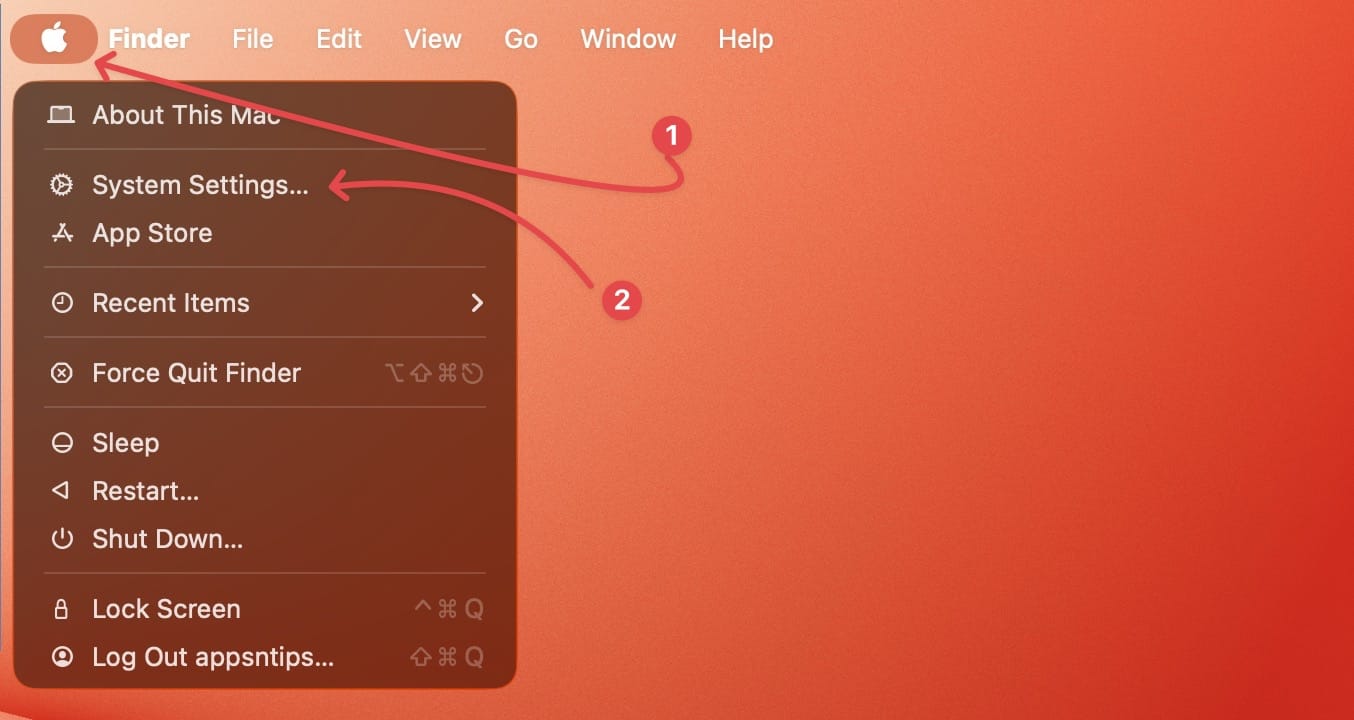
1. Use the Apple Menu to open the System Settings app on your Mac.
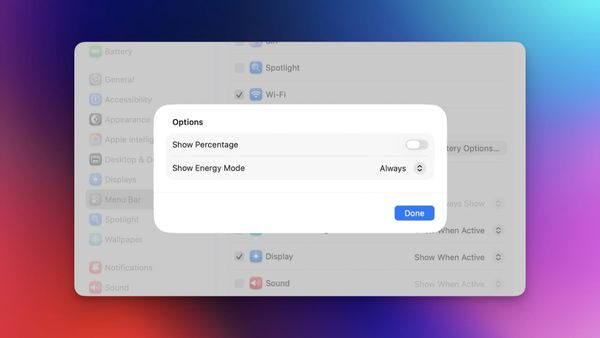
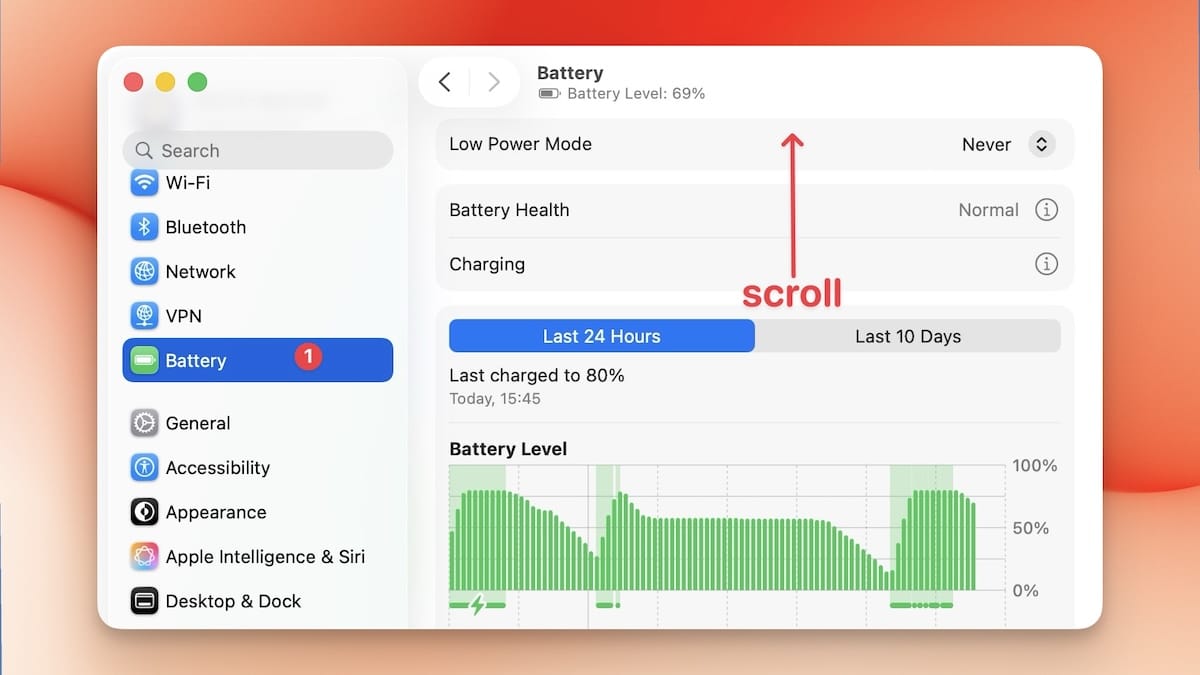
2. Open the Battery settings and scroll to the bottom.
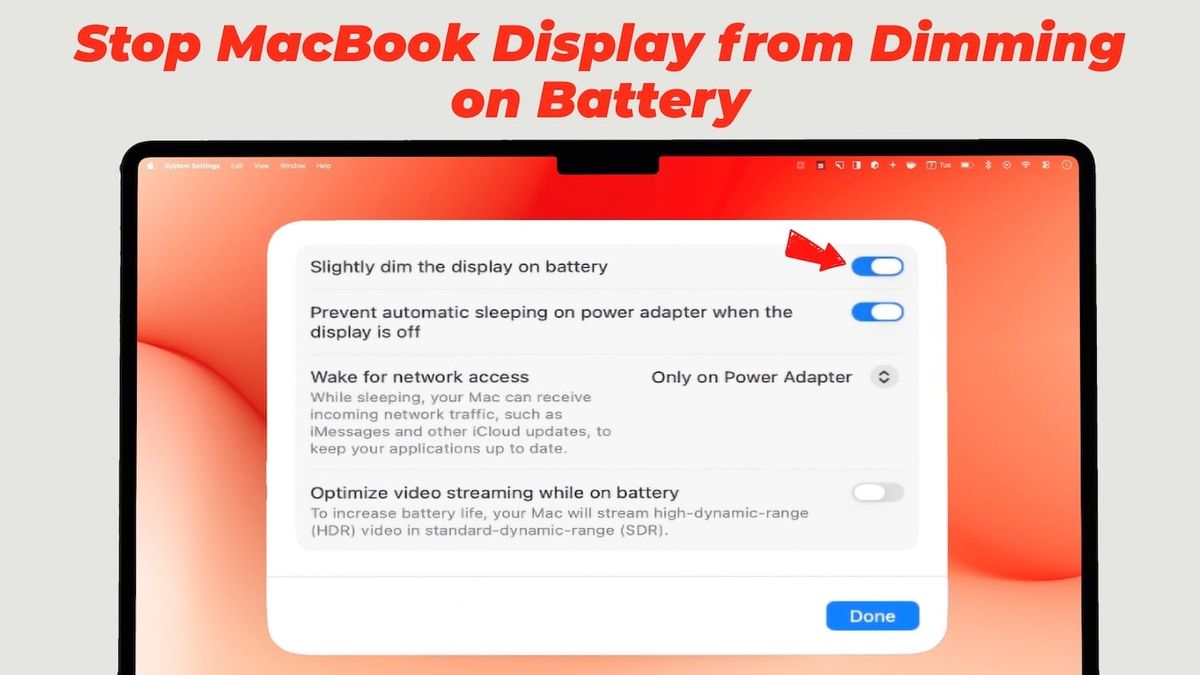
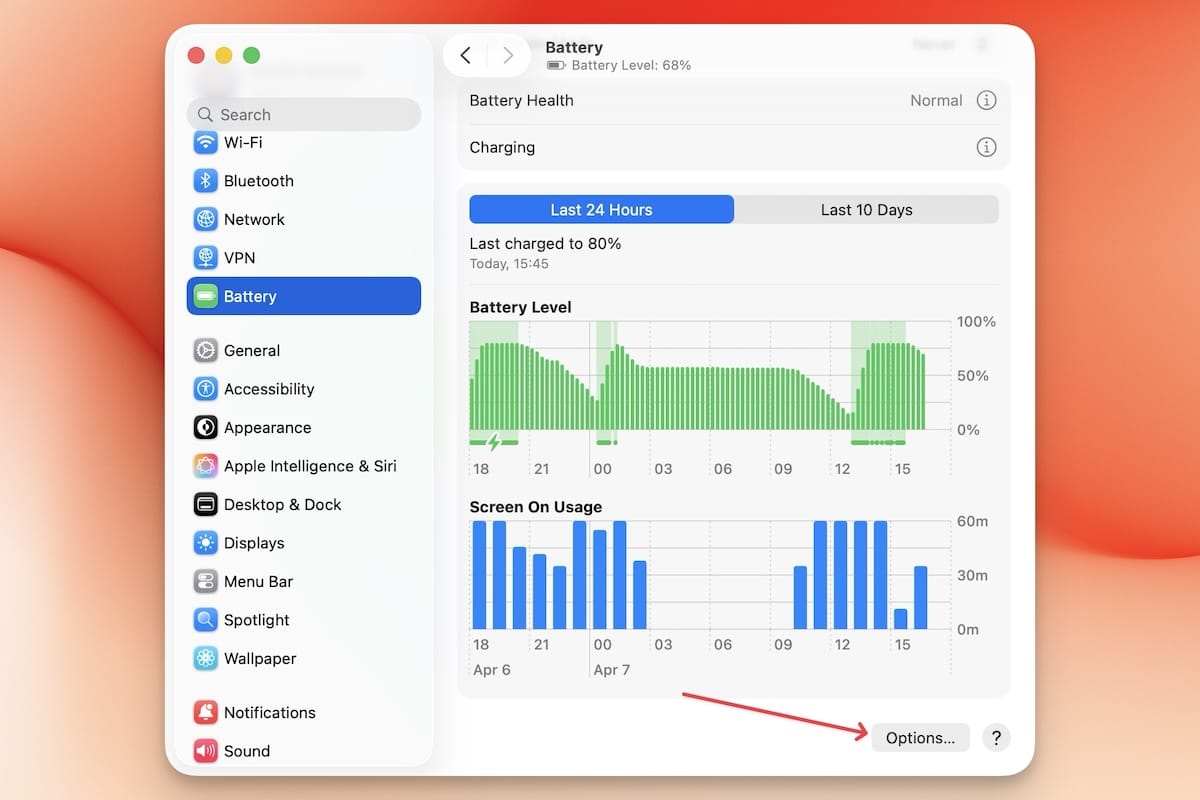
3. Now, click on the Options… button in the bottom-right corner.
4. Turn off the toggle for Slightly dim the display on battery options.
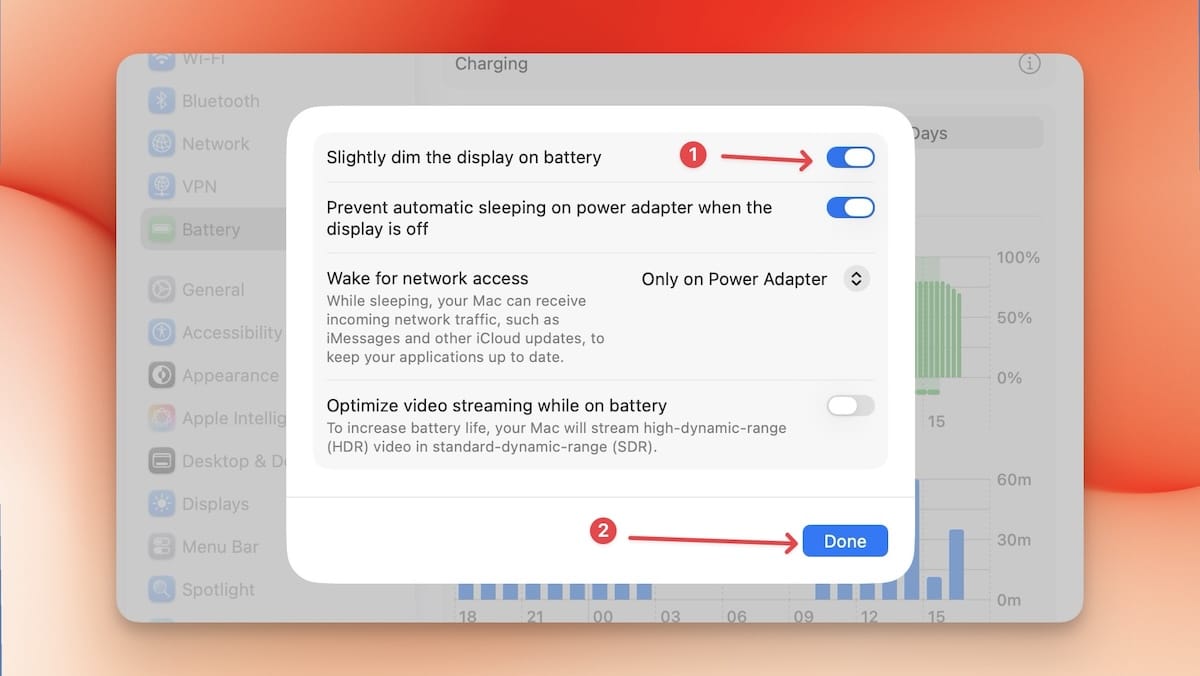
That’s it. Your MacBook will no longer automatically dim the display when on battery power.
If even that’s not enough, you can use a three-party app to double the brightness on your Mac.
Extend the battery life on your Mac
If you have upgraded your MacBook to macOS 26.4 Tahoe, you can now set a battery charge limit on your Mac.
Doing this will help you increase the longevity of your MacBook’s battery, so check out our tutorial.