How to update macOS via Terminal
System Settings app broken on your Mac after a bad update? Here's how to update macOS via Terminal.
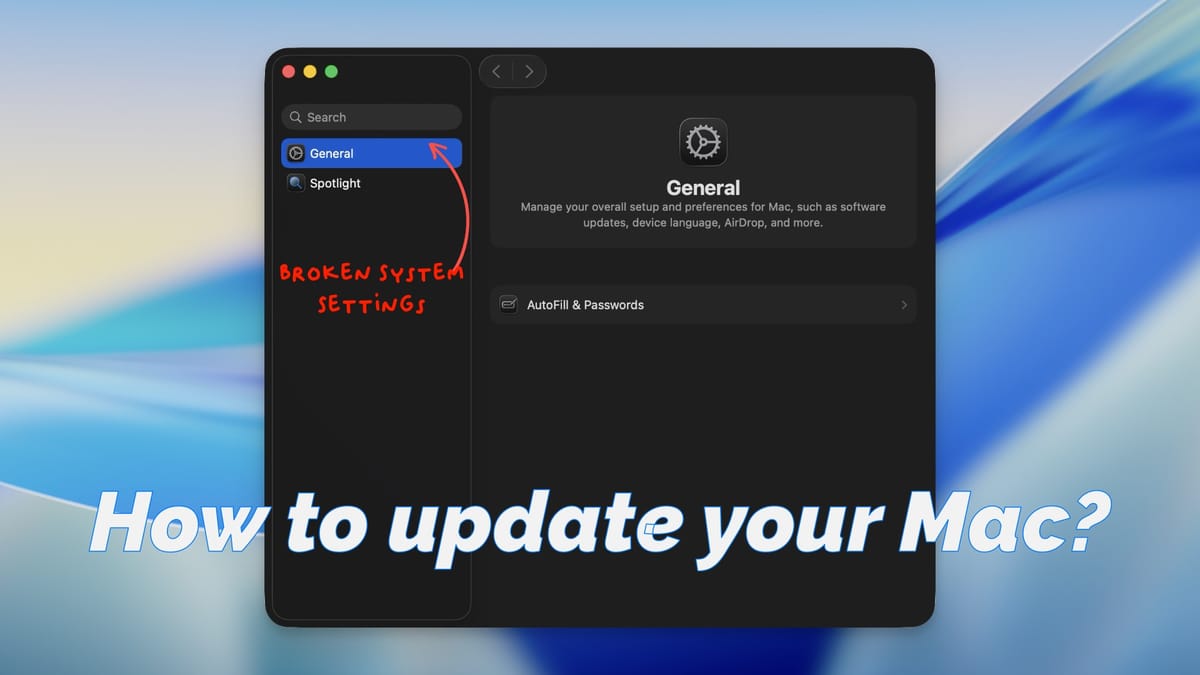
I test new public and developer betas of macOS on my main Mac. Over the past five or so years, I have been running developer betas on my Mac, and I have seldom encountered a debilitating issue.
That all changed with macOS 26.1 developer beta. It rendered my Mac unusable to the point where I could not work on it and had to use a secondary Mac. It also completely wiped out my System Settings app, so I couldn't even update to a new version to fix the problem.
That led me to explore other ways to update my Mac, and I discovered a straightforward method using Terminal.
Install macOS Updates via Terminal
If you think me a fool for using developer betas on my main work machine, I don’t blame you. But since my work involves testing and writing about new features and updates, I don’t want to rely only on a testing device.
It’s when you use the new software on your daily Mac or iPhone that you discover all the quirks and nuances. That said, if your work is not as a tech reviewer, I recommend at least waiting for the public beta.
With that little disclaimer out of the way, here’s how to update macOS using Terminal on a Mac.
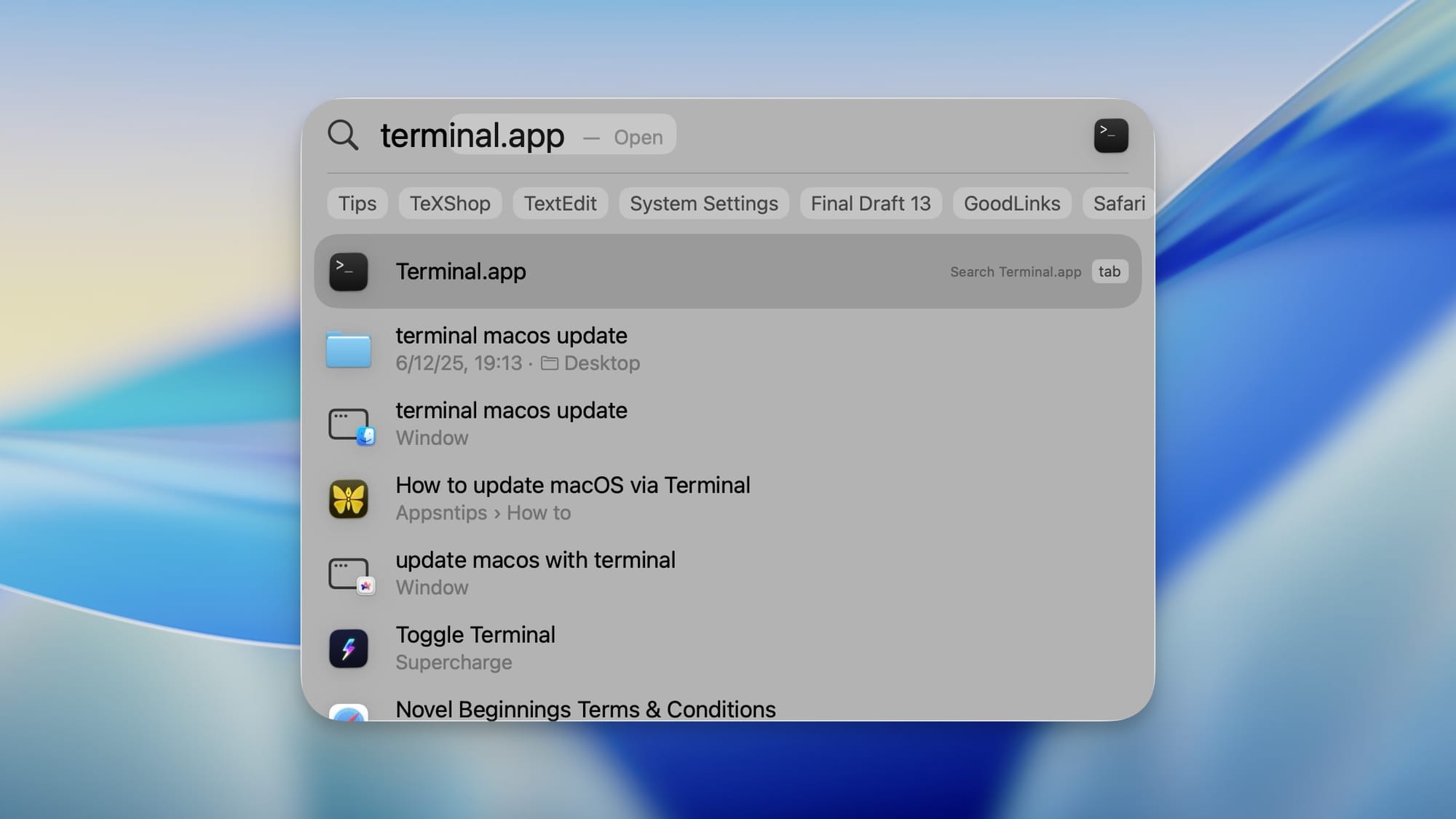
1. Use the ⌘+Space keyboard shortcut to launch Spotlight on your Mac, search for Terminal, and hit the enter/return key to launch it.
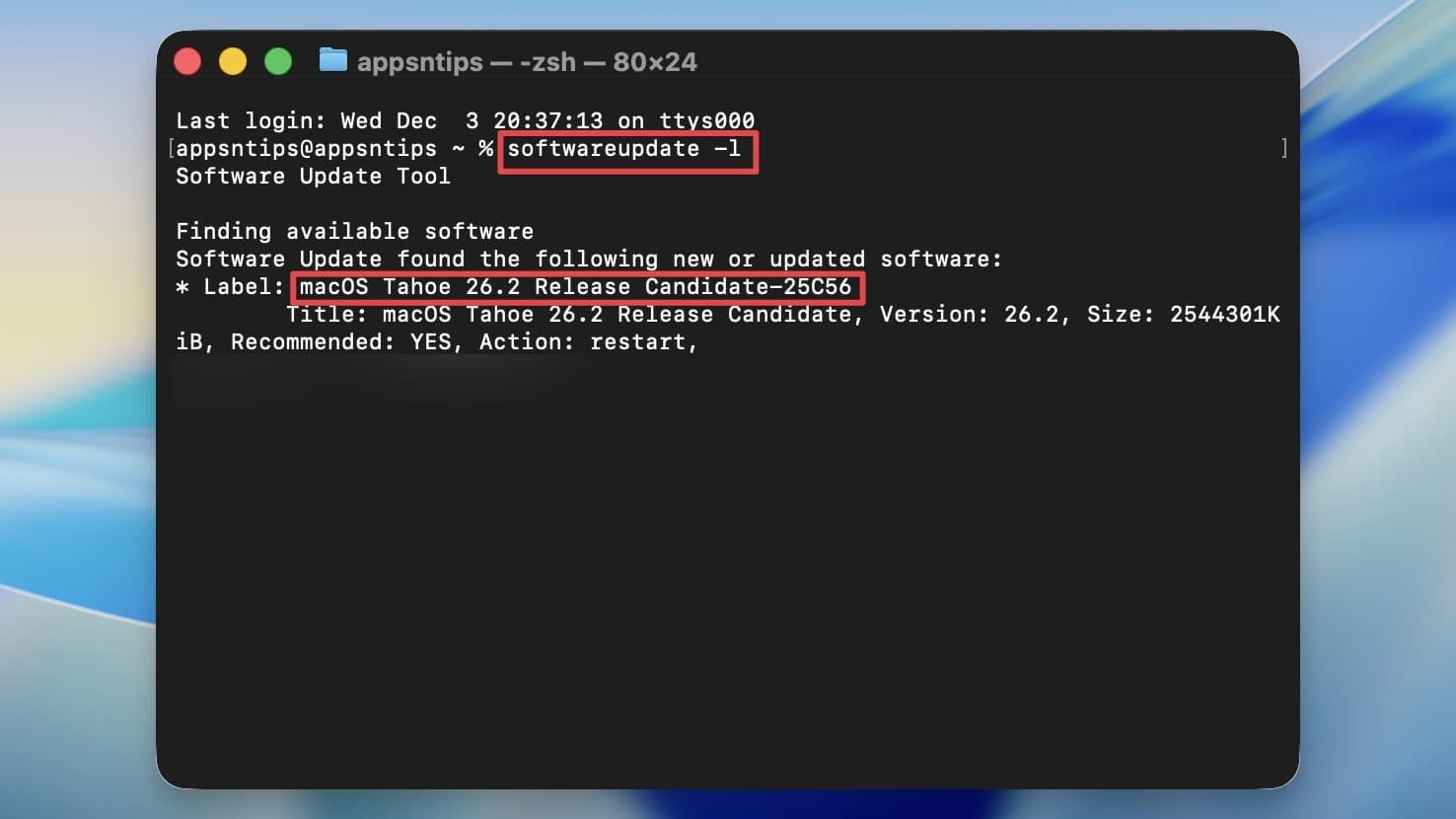
2. Type the following command in Terminal and hit enter.
softwareupdate -l
This will find any available software update on your Mac.
3. Now, type or copy-paste the following command and hit enter. Your Mac will now ask for the login password. Type your Mac’s login password and hit enter to proceed.
softwareupdate -i -a
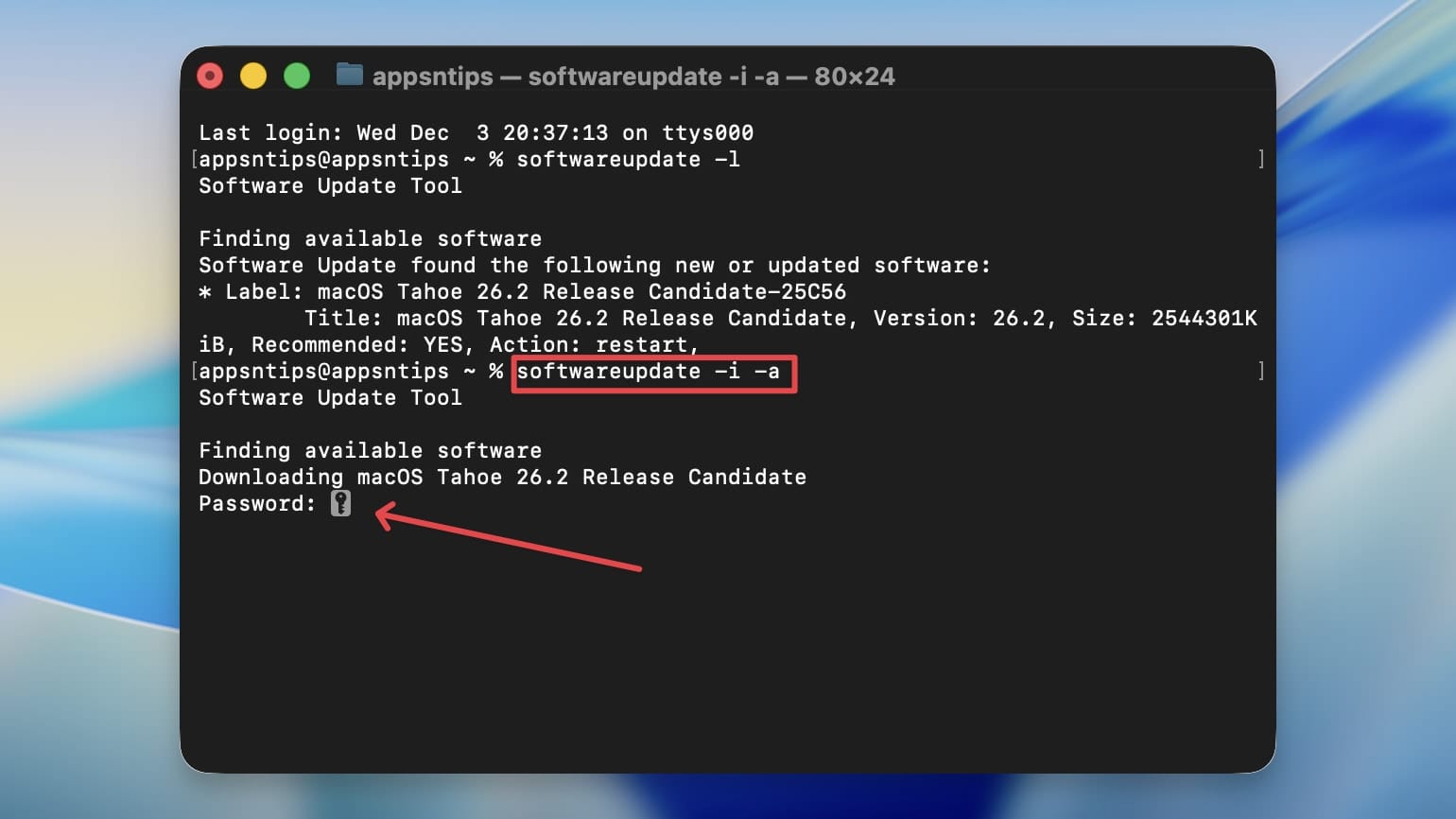
Note: When you type your password in Terminal, it won’t show any characters as you type. This is normal. Just type your password and press Enter.
4. You should now see a downloading section with a progress percentage as shown in the screenshot below.
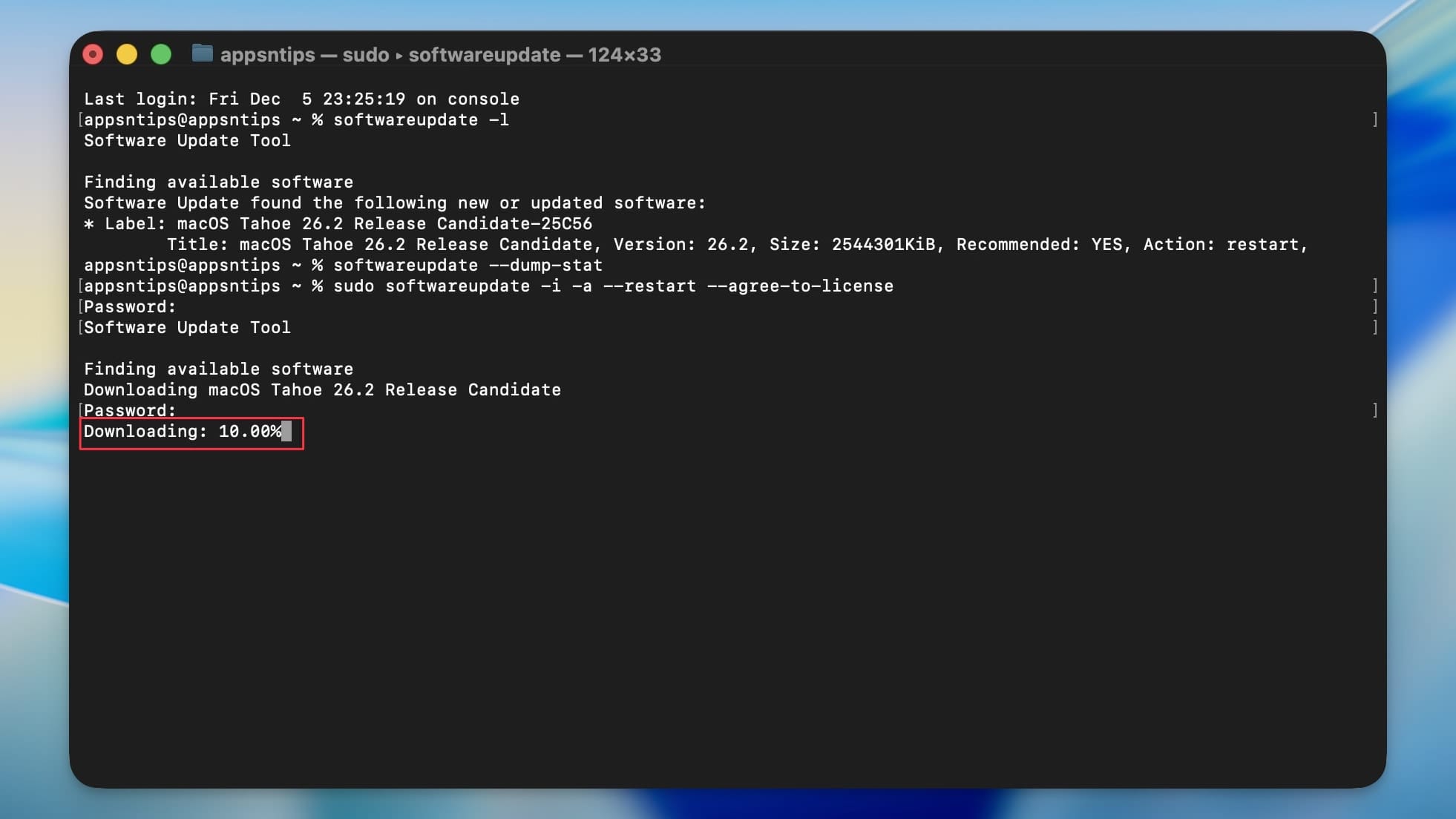
Once the download finishes, the update will automatically install on your Mac.
Install Mac updates using Terminal
That’s how easy it is to install updates using Terminal on Mac. If you liked this guide, click here to learn about the 10 Terminal commands that will enhance your Mac experience.