How to Check Hotspot Usage on iPhone
Apple finally makes it easy to see who's eating your Hotspot data.
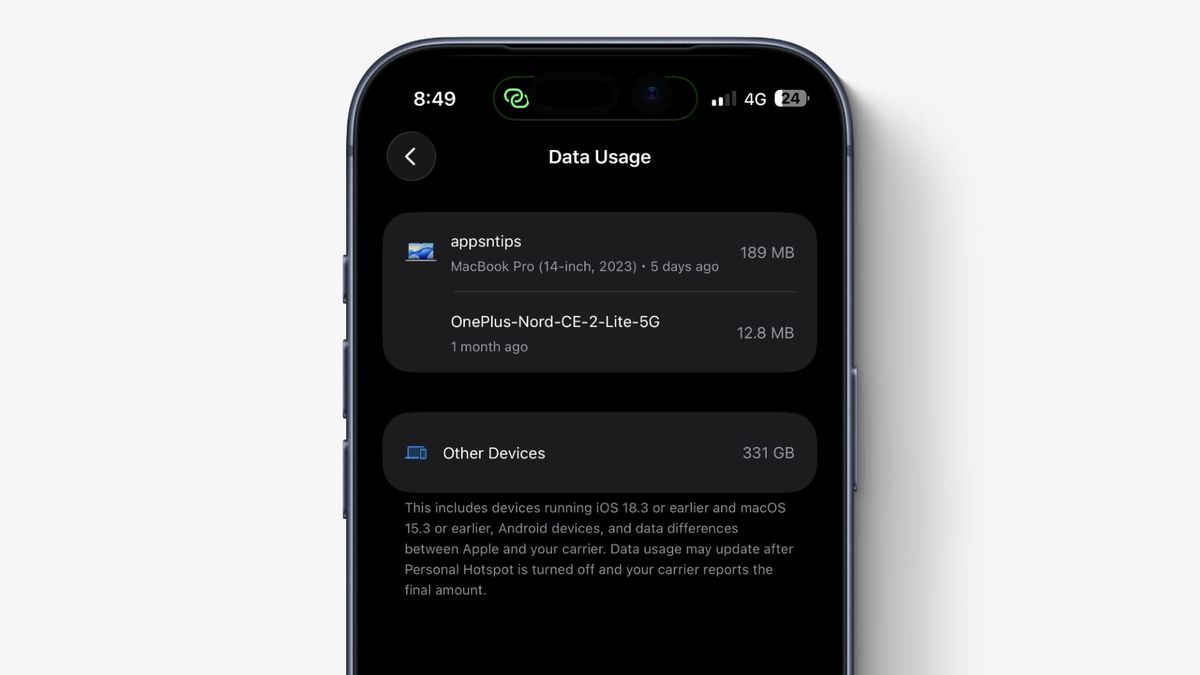
If your iPhone data runs out before it should and you’re not sure why, your Hotspot connection might be the culprit. It might be one of your devices using too much data or you have shared your Hotspot with someone, and they are using more than their share. With iOS 26.4 update, Apple has made it really easy to see which devices are consuming how much of your data using your personal Hotspot.
Find out who is using your personal Hotspot data
Before the iOS 26.4 update, the Hotspot data usage statistics was hidden in the Cellular data section. But now you can find it in the Personal Hotspot settings, where it always belonged.
Simply go to Settings → Personal Hotspot → Data Usage to see your data usage. Here are the step-by-step guide with screenshots.
1. Launch the Settings app on your iPhone and open the Personal Hotspot settings.
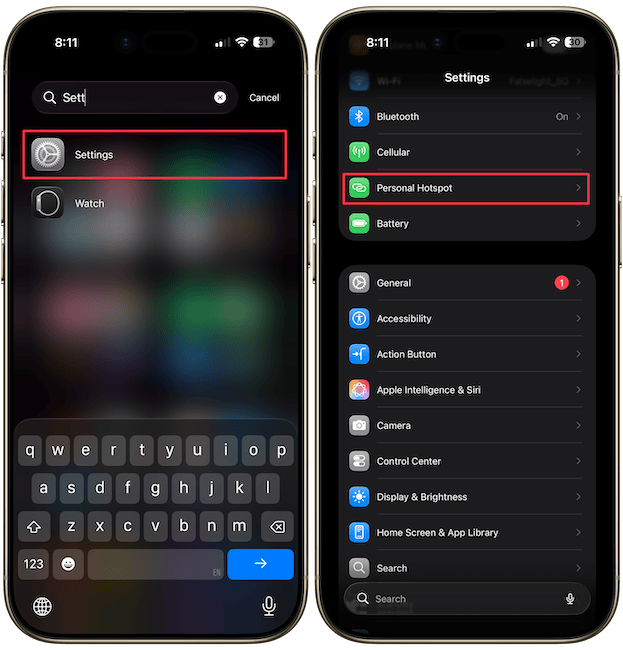
2. Now tap on Data Usage and you will see a list of all devices along with the amount of data each one has consumed.
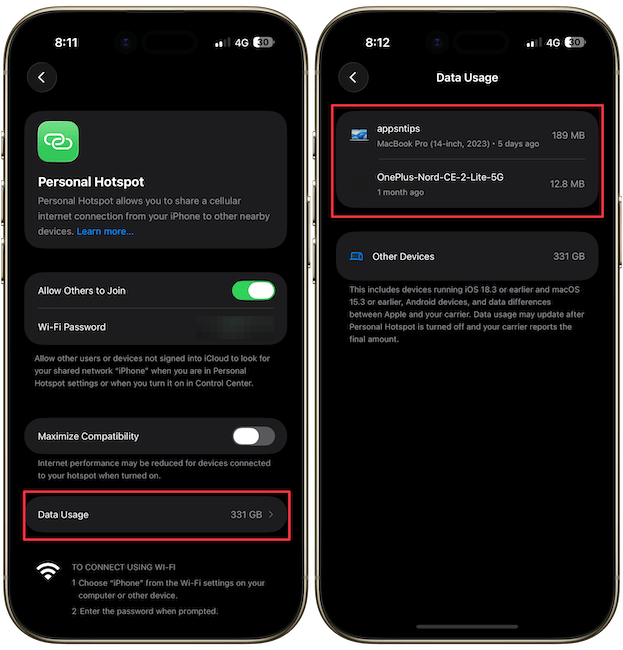
You will also see an Other Devices section, which combines all data usage from devices running iOS 15.3 and earlier, macOS 18.3 and earlier, or any device not individually recognized by Apple.
Missing features in Hotspot data consumption
I would love for Apple to add a daily or weekly data usage chart. It would make it easy to identify the culprit. I would also love if it let us dive into data usage statistics so we can find not only which device but which activities are depleting the data.
Before you go, click here to see how to fix if your Hotspot is connecting but not working on your Mac.