
3 Apple Notes Features in iOS 27 I Can't Live Without
From tidy divider lines to instant section jumps and effortless Markdown pasting, iOS 27 quietly makes Notes feel like a whole new app.

As I have said countless times before, for most users Apple Notes is the only note-taking app they need. Apple keeps improving the app with every new iOS update, and the same holds for iOS 27, which is currently in beta.
While there are several minor improvements, three features have stood out to me and genuinely improved my note-taking experience. So, let’s talk about them.
1. Divider lines to organize your notes
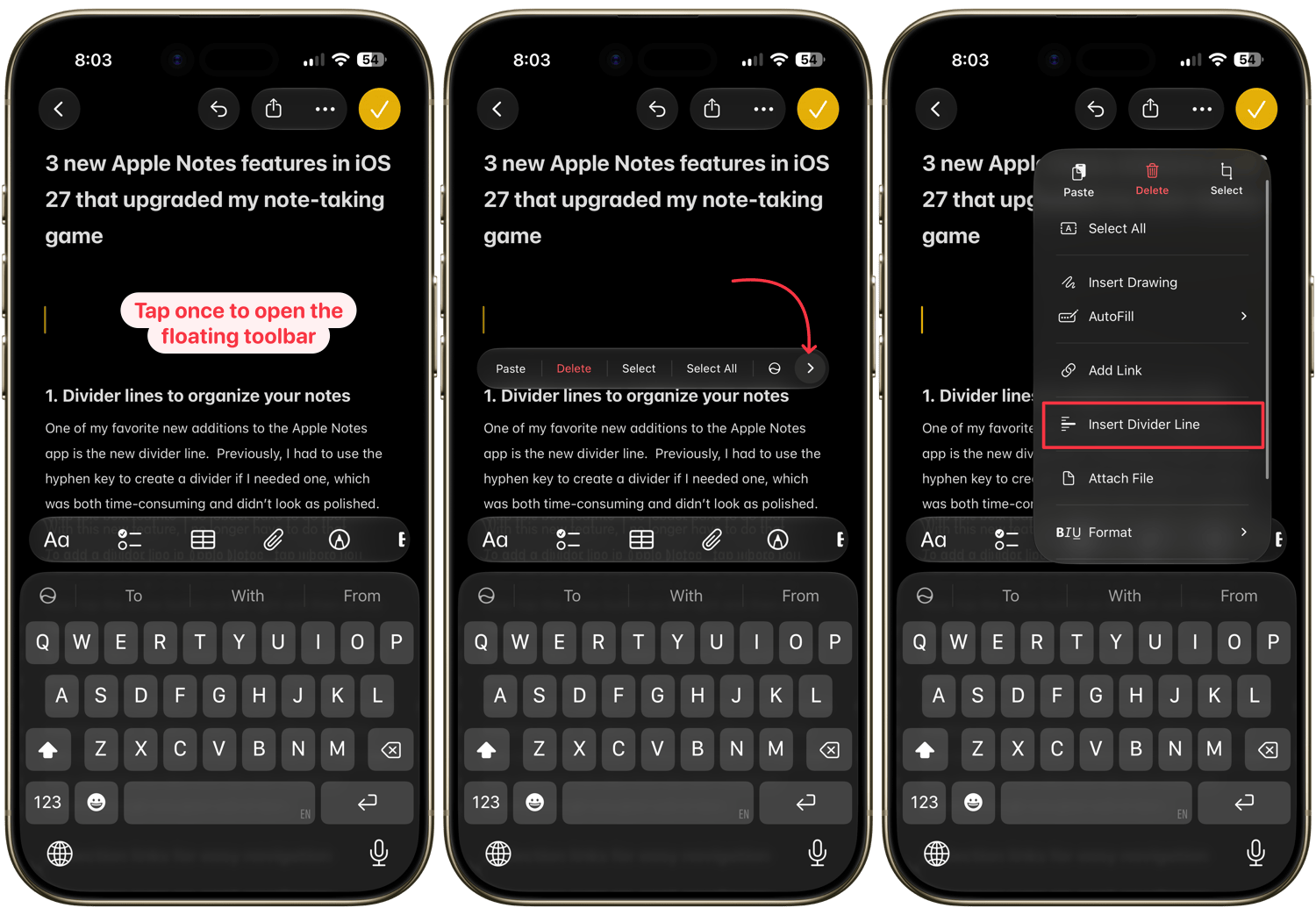
One of my favorite new additions to the Apple Notes app is the new divider line. Previously, I had to use the hyphen key to create a divider if I needed one, which was both time-consuming and didn’t look as polished. With this new feature, I no longer have to do that.
To add a divider line in Apple Notes, tap where you want the line to go to open the floating context bar. Now, tap the arrow button on the right and then on the “Insert Divider Line” option to add the line.
It sounds like a minor addition, but if you use Notes for anything longer than a quick reminder, like meeting notes, project outlines, or even a grocery list split across multiple stores, dividers make a real difference.
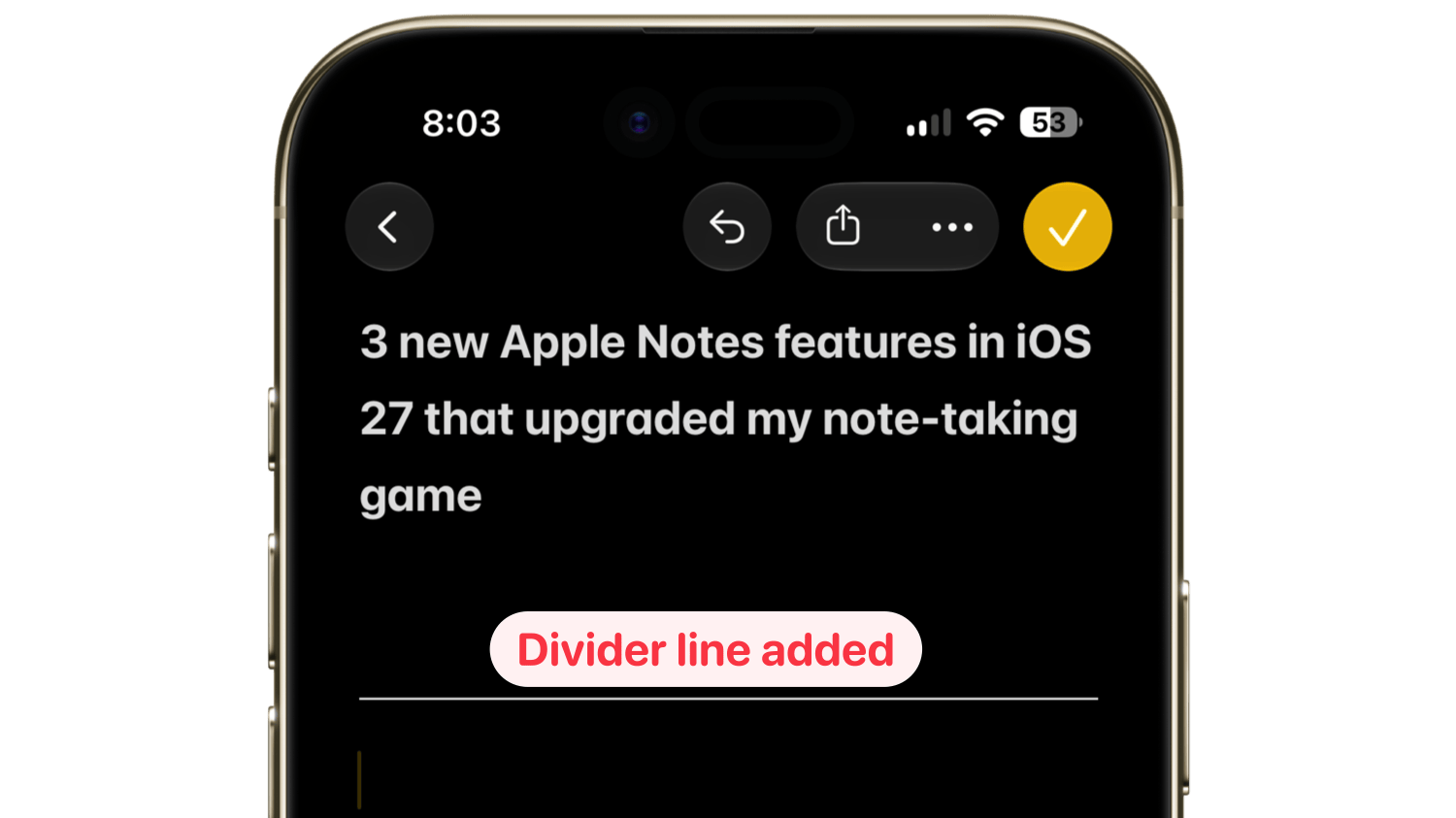
They give your notes a clean, professional look and help your eyes separate one idea from the next instead of scrolling through one giant wall of text.
2. Section links for easy navigation
Apple Notes added the ability to link to other notes with the iOS 17 update. Now, it has built on this feature, allowing users to link not only to a note, but to a specific section of the note. A section is anything that uses a heading or subheading. You can do this for both other notes or sections in the same note.
To link to a section in another note, you first need to create a link to that note. If you don’t know how to do that, you can click the link above to read that guide. I will use the simplest method, which is to use the double greater-than (>>) sign to open the list of notes I can link to.
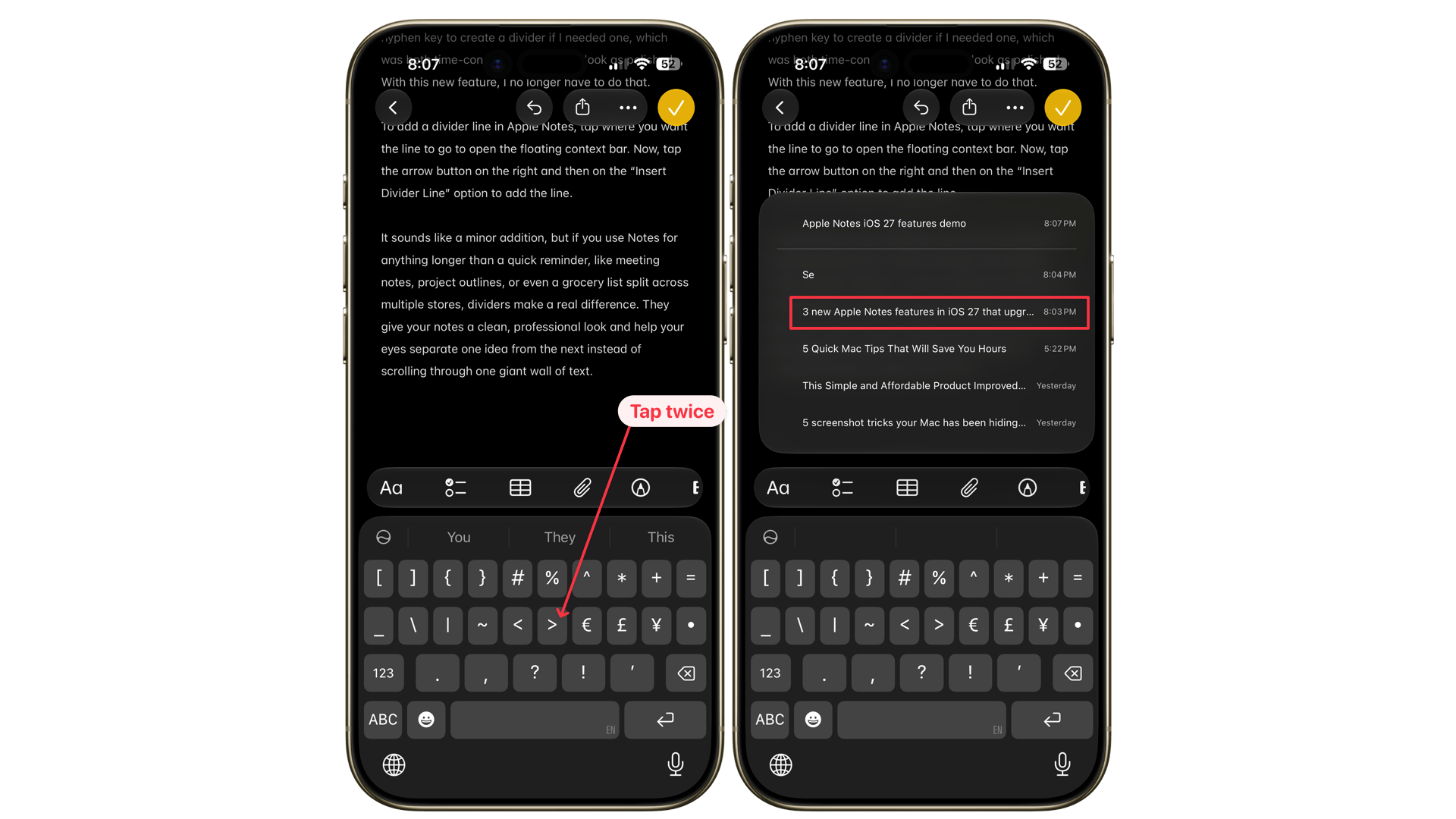
As soon as I select a note, I can use a forward slash to link to a section of that note. All I need to do is type the forward slash and select the section I want to link to. Now, when I tap the link, it will directly open to that section.
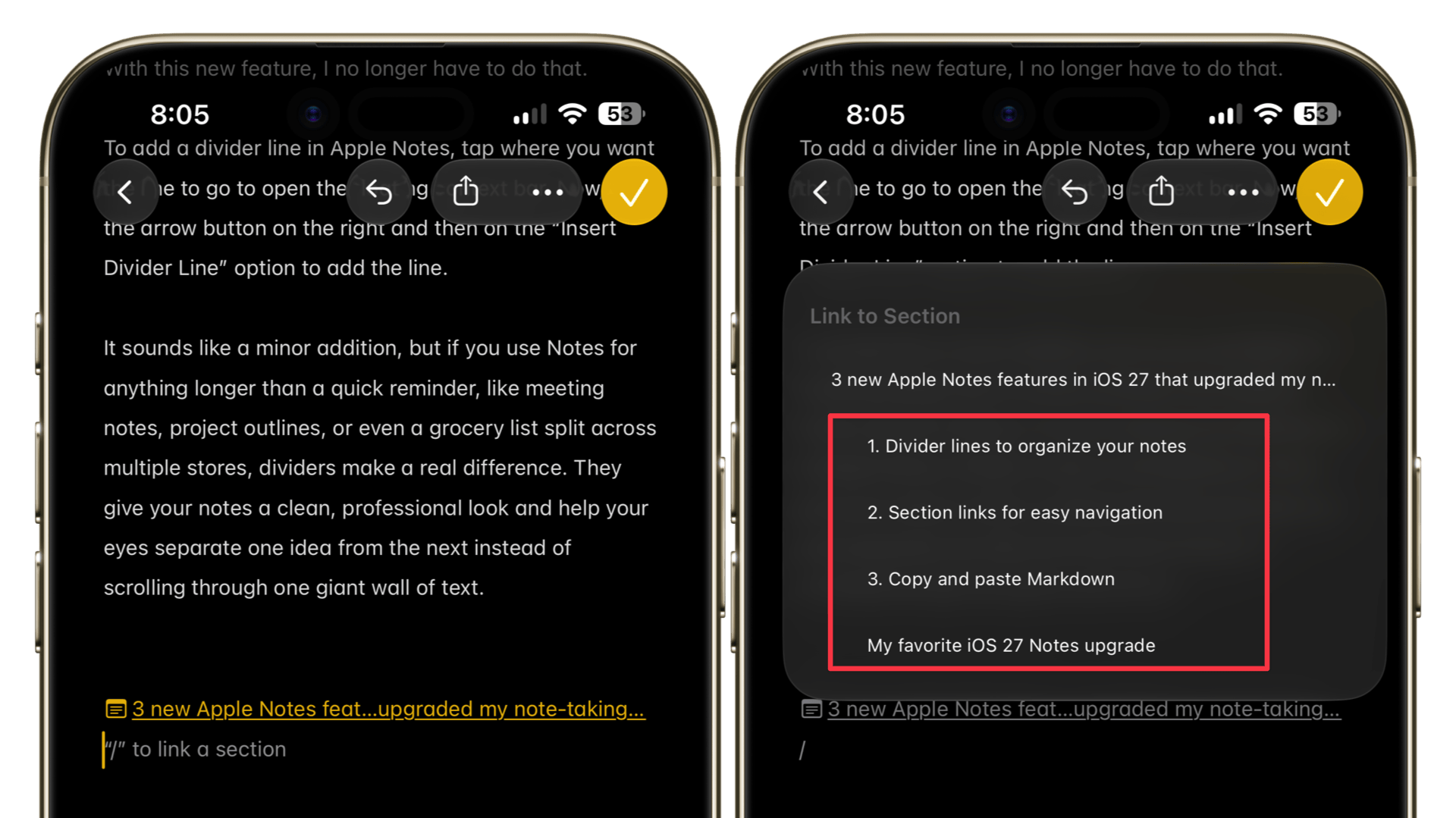
As I mentioned before, Apple Notes also lets you do this for sections in the same note, which is perfect for creating a table of contents. The easiest way to accomplish this is to tap where you want to create the table of contents to open the floating menu.
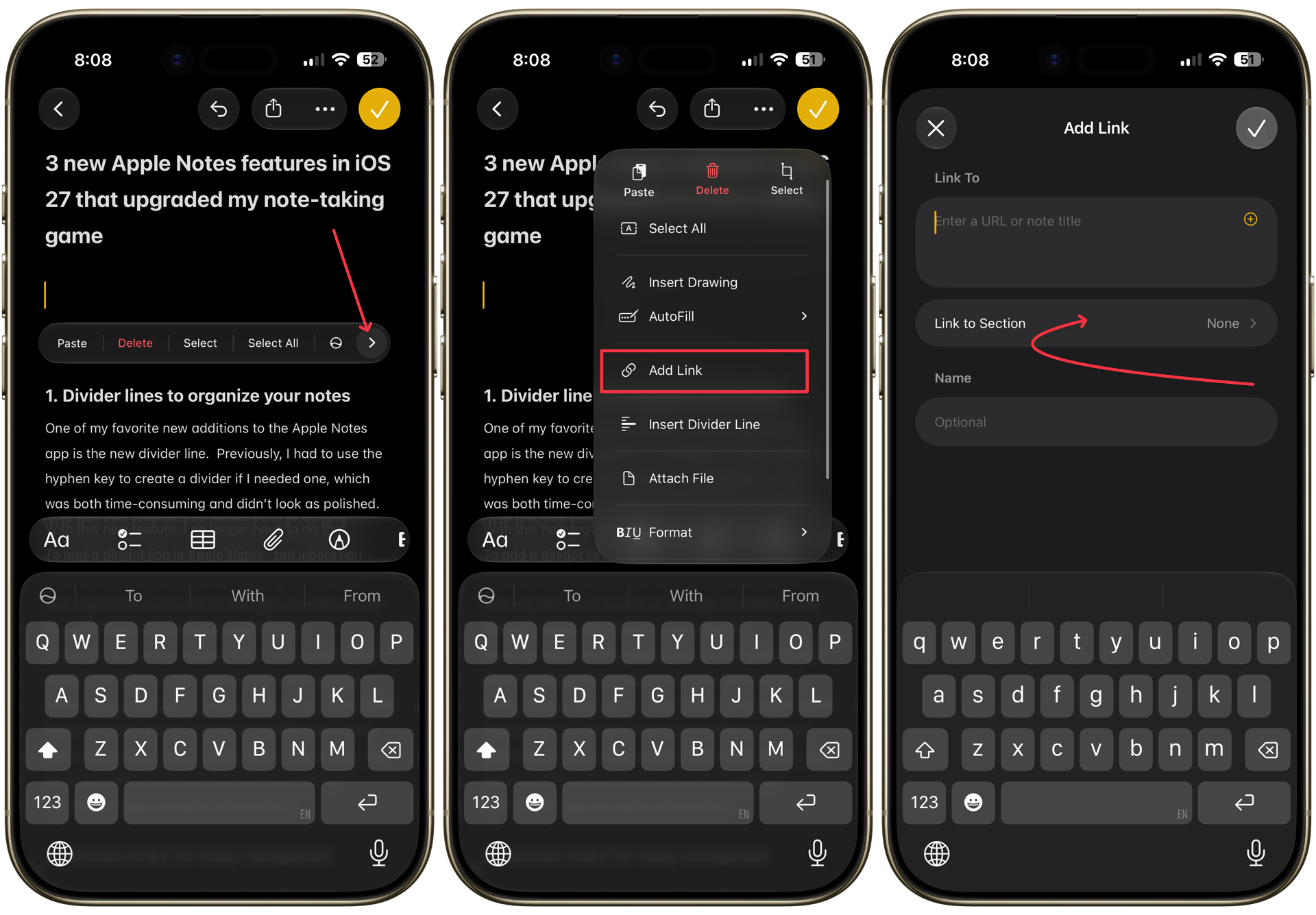
Now, tap the right arrow and choose the Add Link option. Leave the notes field empty and tap on the “Link to Section” option. Here, you will see all the sections in the notes. Tap on one to add it.
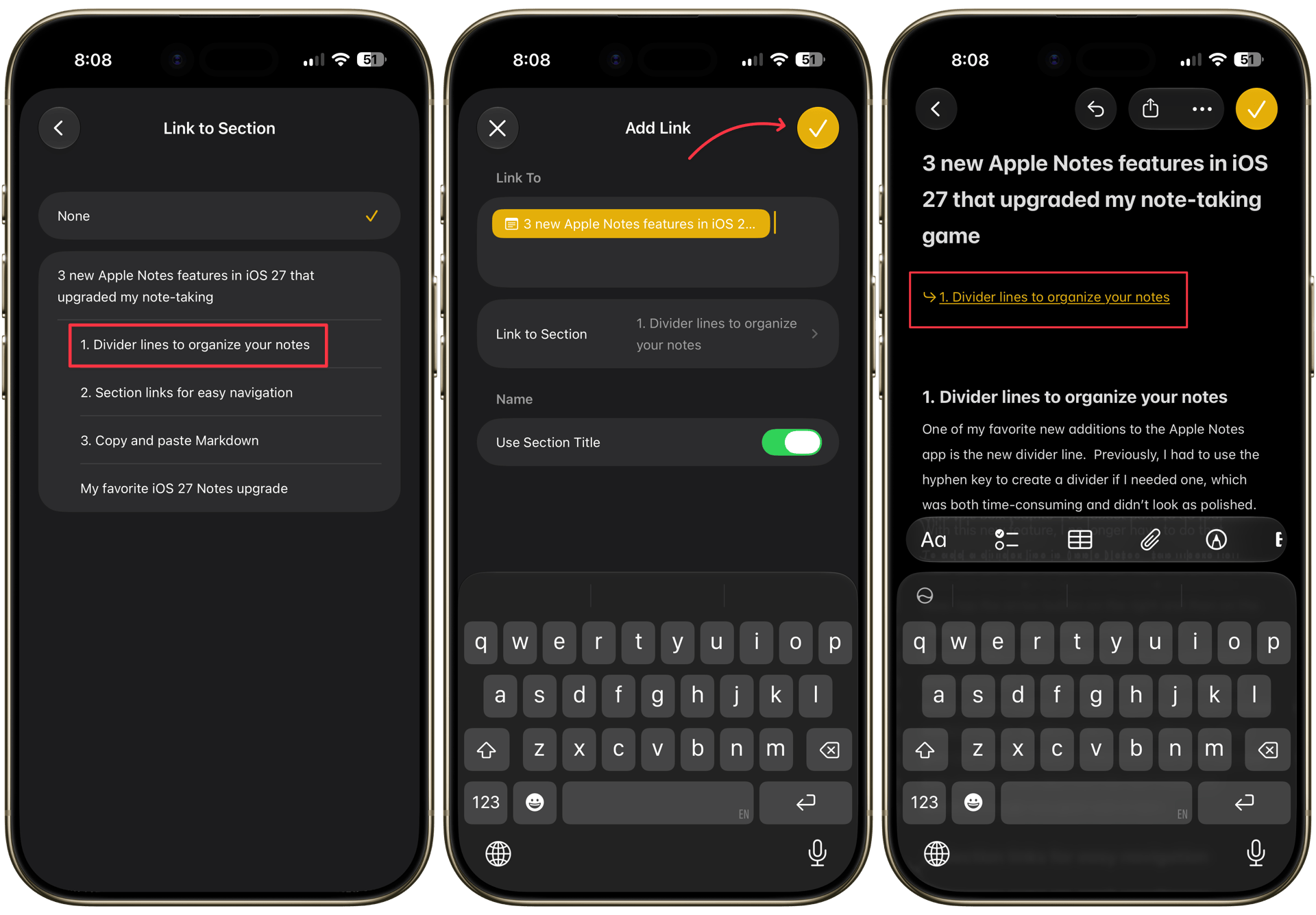
Do this for all the sections, and you have just created a table of contents for your note. If a note is too long, I even add links to sections at the bottom, so I can easily move to any section without too much scrolling.
3. Copy and paste Markdown
Last year, iOS 26 brought Markdown import and export to Notes for the first time. This year, Apple is taking it a step further. Now, when you paste Markdown-formatted text into a note, it automatically converts into rich text. That means I can copy a document from Ulysses and paste it in Apple Notes with all the formatting kept intact.
My favorite iOS 27 Notes upgrade
Out of these three, section links win for me by a mile. It's a simple idea, but it's made navigating my longer notes so much faster, and I honestly can't believe it took this long to arrive. Divider lines and Markdown support are close behind, though, and together, these three updates make Notes feel like a genuinely more capable app this year.