How to Install iOS 27 Developer Beta on Your iPhone
Can't wait until fall? Here's how to install the iOS 27 developer beta on your iPhone today.
Apple just concluded its WWDC 2026 event, and it was all about bug fixes and new Siri AI. I like this update more than most users, as we are finally getting a performance and stability improvement update instead of new flashy looks and features that only worsened the iOS experience.
While I don’t recommend installing the developer beta on your primary iPhone, if you want to test the new features and like to live on the edge, here’s how to install the iOS 27 developer beta on your iPhone.
Quick answer: How to install iOS 27 developer beta
If you want the quick answer, here are the steps to install iOS 27 developer beta on your iPhone.
- Visit developer.apple.com using Safari on your iPhone.
- Sign in with your Apple account.
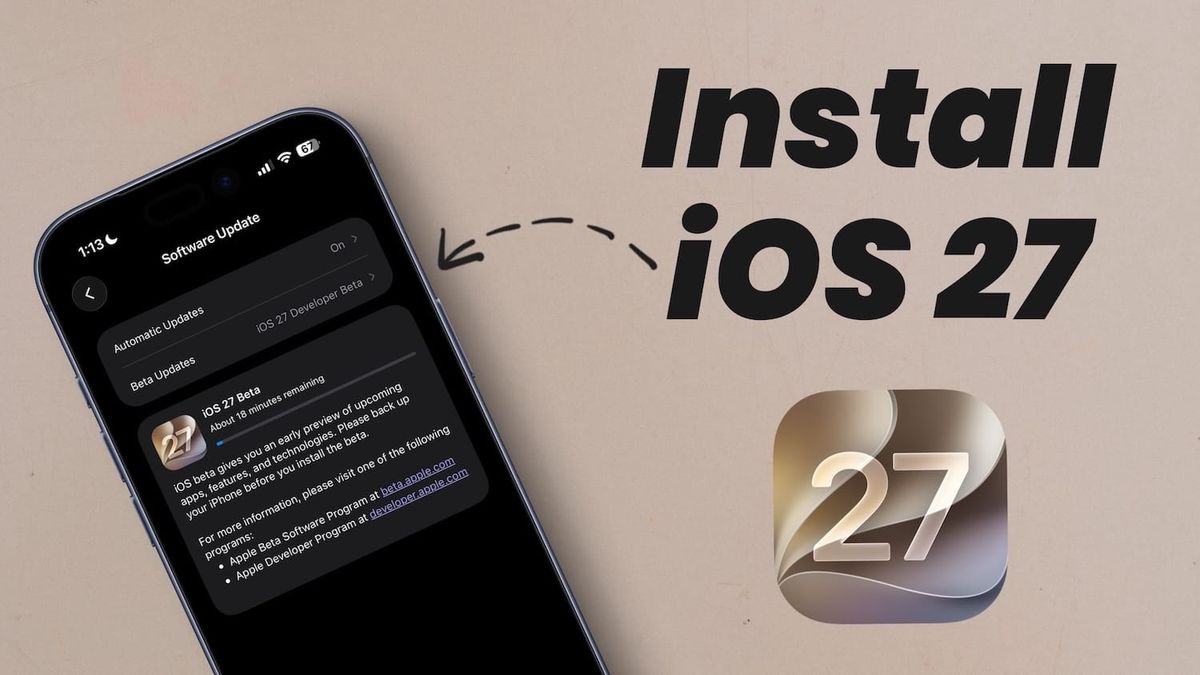
- Launch the Settings app and go to General → Software Update → Beta Updates.
- Select the iOS 27 developer beta option.
- Go back a page, and you should see the option to download and install it.
Install iOS 27 developer beta on your iPhone
To install iOS 27 developer beta on your iPhone, you will first need to sign into Apple Developer’s account. There are two ways to accomplish this task.
1. Launch the Safari app on your iPhone and visit developer.apple.com.
2. Tap the “Sign in” button in the top-right corner and sign in with your Apple account. It’s the same account that’s signed into your iPhone.
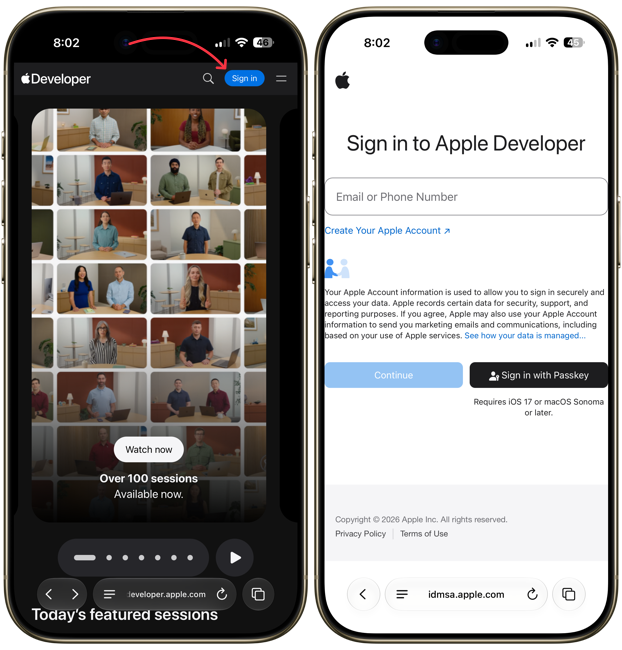
If you are signing in for the first time, you might see an Apple Developer Agreement. Scroll down and click the Agree button to accept.
3. Another way to accomplish the same task is by downloading the Apple Developer app. Launch the App Store on your iPhone, search for the Apple Developer app, and install it.
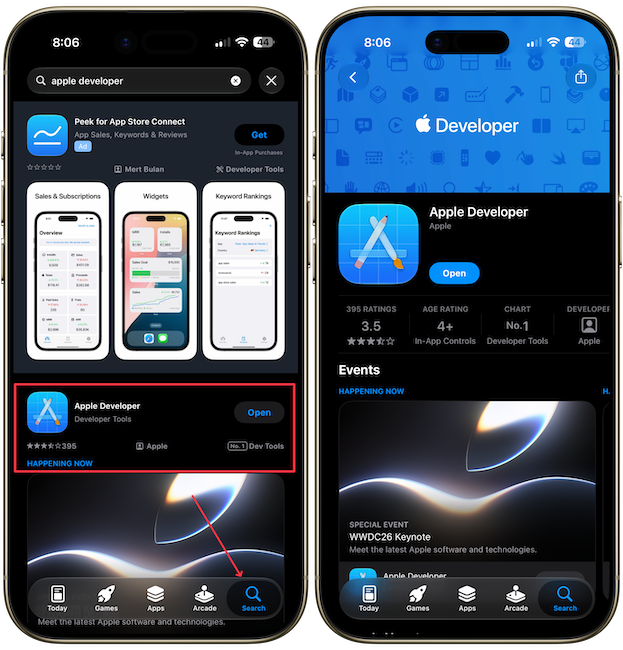
4. As we did in Safari, sign in to the app using your Apple ID.
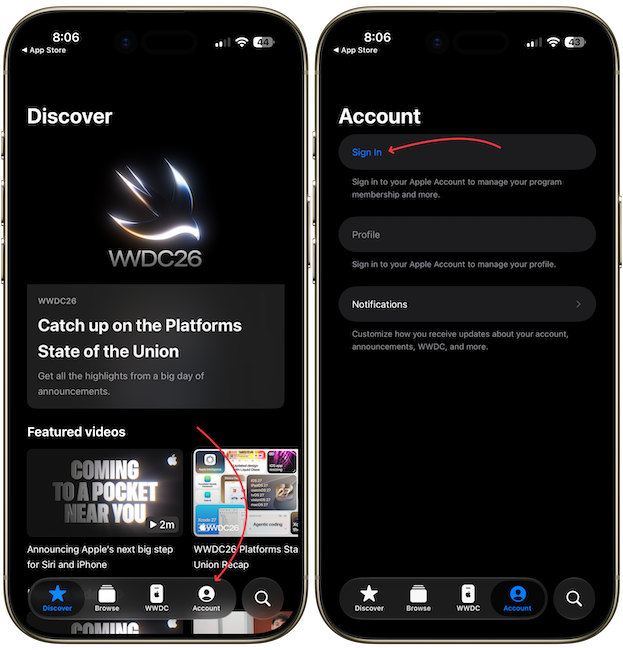
Once you have signed into either the Apple Developer’s website or app, go back to the home page.
5. Now, launch the Settings app and go to General → Software update, and wait for it to load.
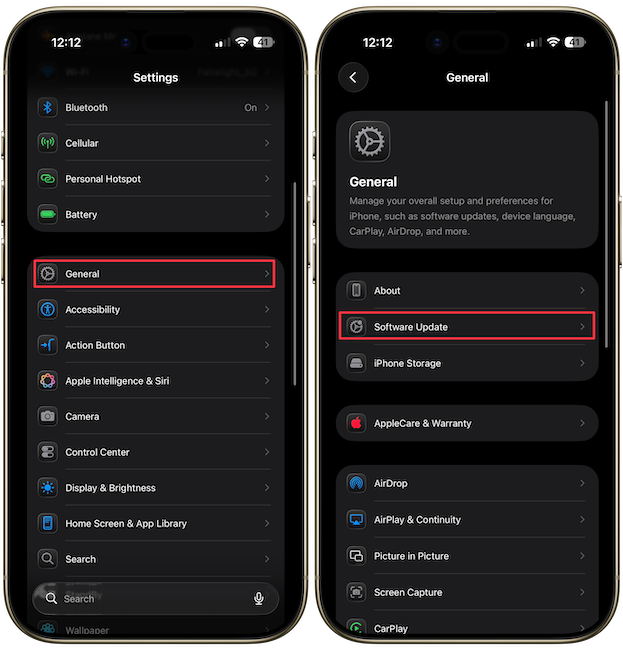
7. Tap on Beta Updates and choose the iOS 27 Developer Beta option.
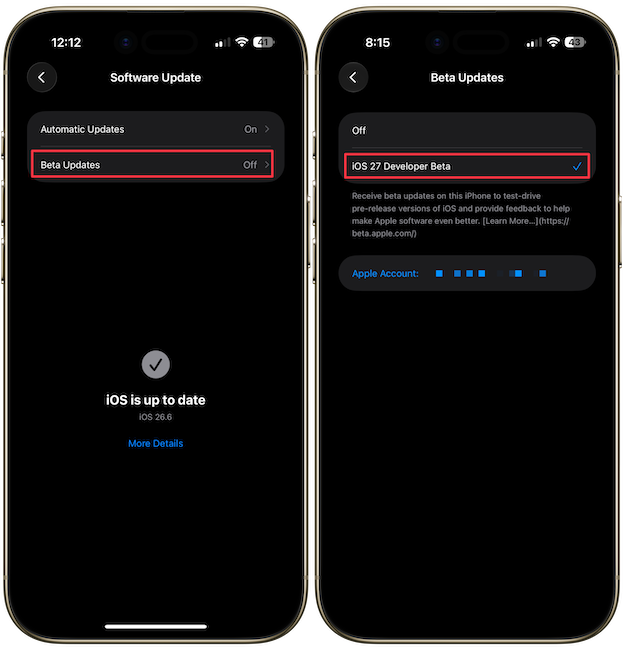
8. Go back, and you will see that the iOS 27 developer beta is ready to download and install.
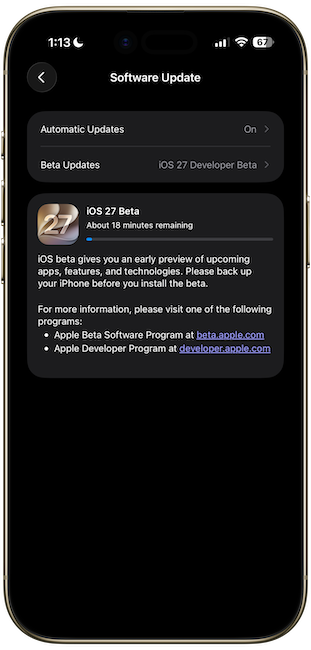
Now, just follow the on-screen instructions, and you are good to go.
Precautions to take before installing the update
If you are installing the iOS 27 developer beta on your primary device, first ensure that you have backed up your iPhone, so if anything goes wrong, you don’t lose your data.
Also, the iOS 27 beta is an almost 14-18 GB download, so ensure that at least 25-30 GB of storage is available on your iPhone before you download the update.
That’s about it. We will keep covering the new iOS 27, macOS 27, WatchOS 27, and iPadOS 27 features here, so please subscribe if you don’t want to miss out on all the latest features for your Apple Devices.