How to Show Battery Percentage in Menu Bar on Mac
Use this guide to learn how you can show battery percentage in your Mac's Menu Bar in macOS Tahoe, macOS Ventura, and other past versions of macOS.
If you like knowing exactly how much battery life you have left before panic-closing every app, showing the battery percentage in your Mac's menu bar is a small change that makes a big difference.
However, if you recently upgraded to macOS Tahoe, you might find yourself staring at System Settings, wondering where everything went. Here's how to show battery percentage in Menu Bar on Mac for all macOS versions.
Key Takeaways:
- Enable Battery Percentage on macOS Tahoe 26: Go to Apple Menu → System Settings → Menu Bar → Battery Options… → Show Percentage.
- Show Battery Percentage on macOS Sequoia, Ventura, or Sonoma: Go to Apple Menu → System Settings → Control Center → Battery → Show Percentage.
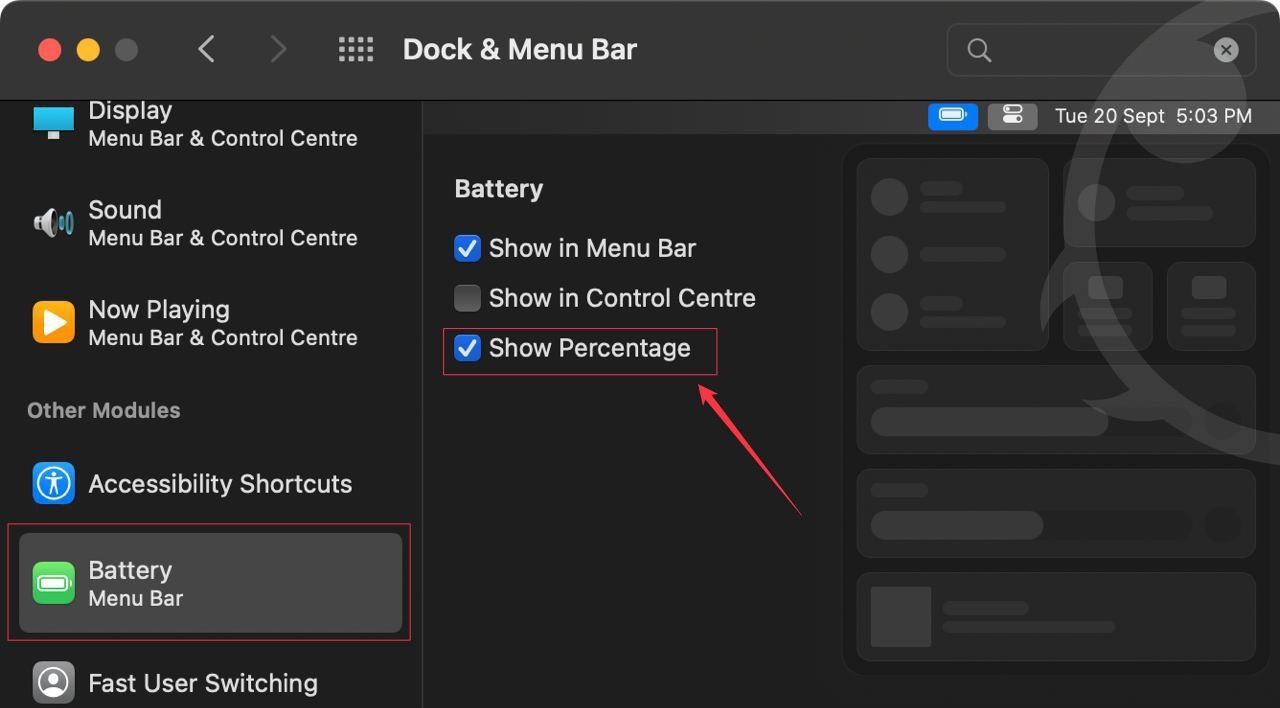
- Display Battery Percentage on macOS Monterey or Earlier: Go to Apple Menu → System Preferences → Dock & Menu Bar → Battery Menu Bar → check Show Percentage .
Table of Contents
- Show battery percentage in Mac Menu Bar in macOS Tahoe
- Show battery percentage in Mac Menu Bar in macOS Sequoia
- Show battery percent in Mac in macOS Big Sur and below
Show battery percentage in Mac Menu Bar in macOS Tahoe
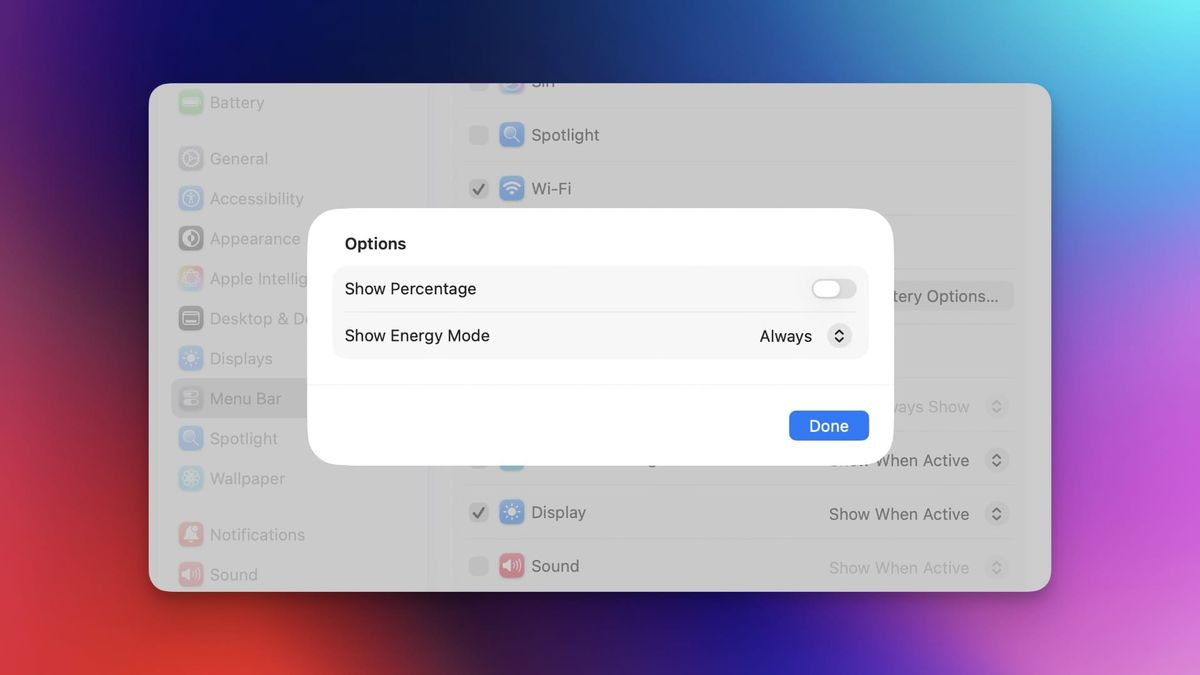
Apple has shuffled around a few settings in macOS Tahoe. Control Center has been renamed to Menu Bar in System Settings, so the steps are slightly different from what you might remember from Ventura.
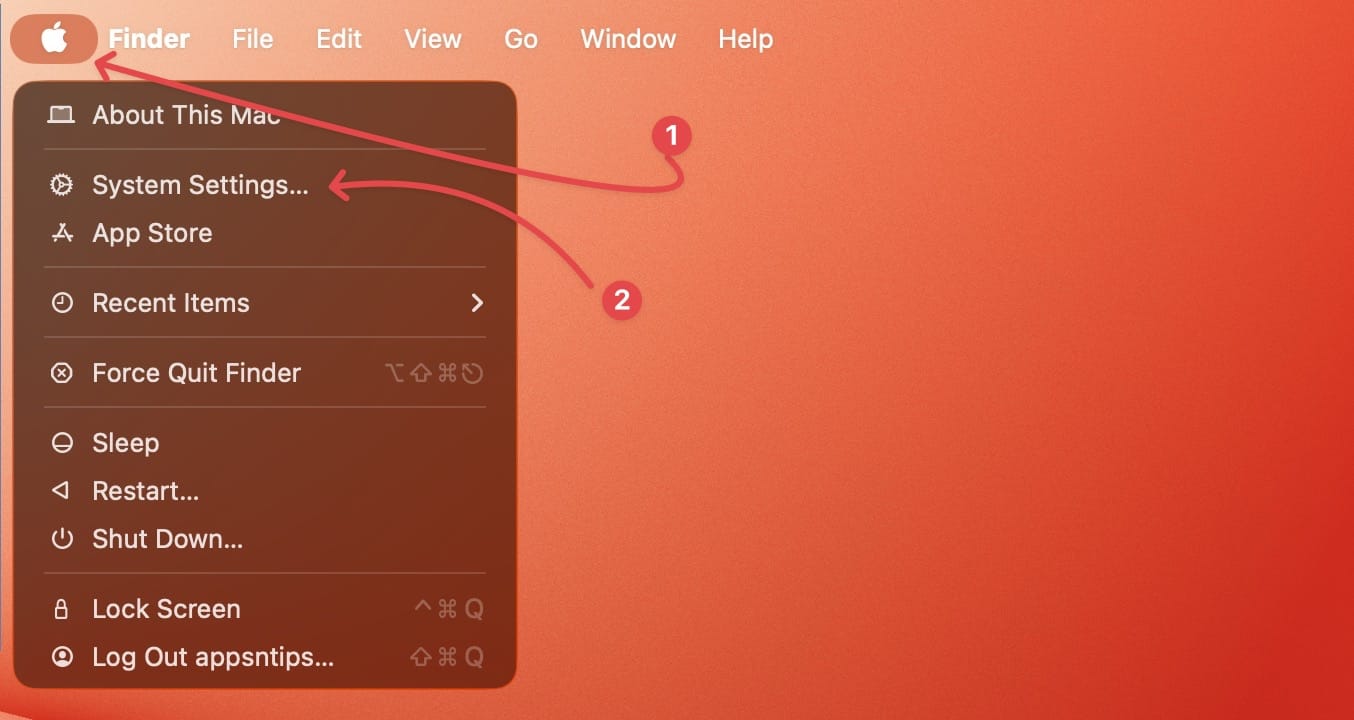
1. Use the Apple Menu to open the System Settings app.
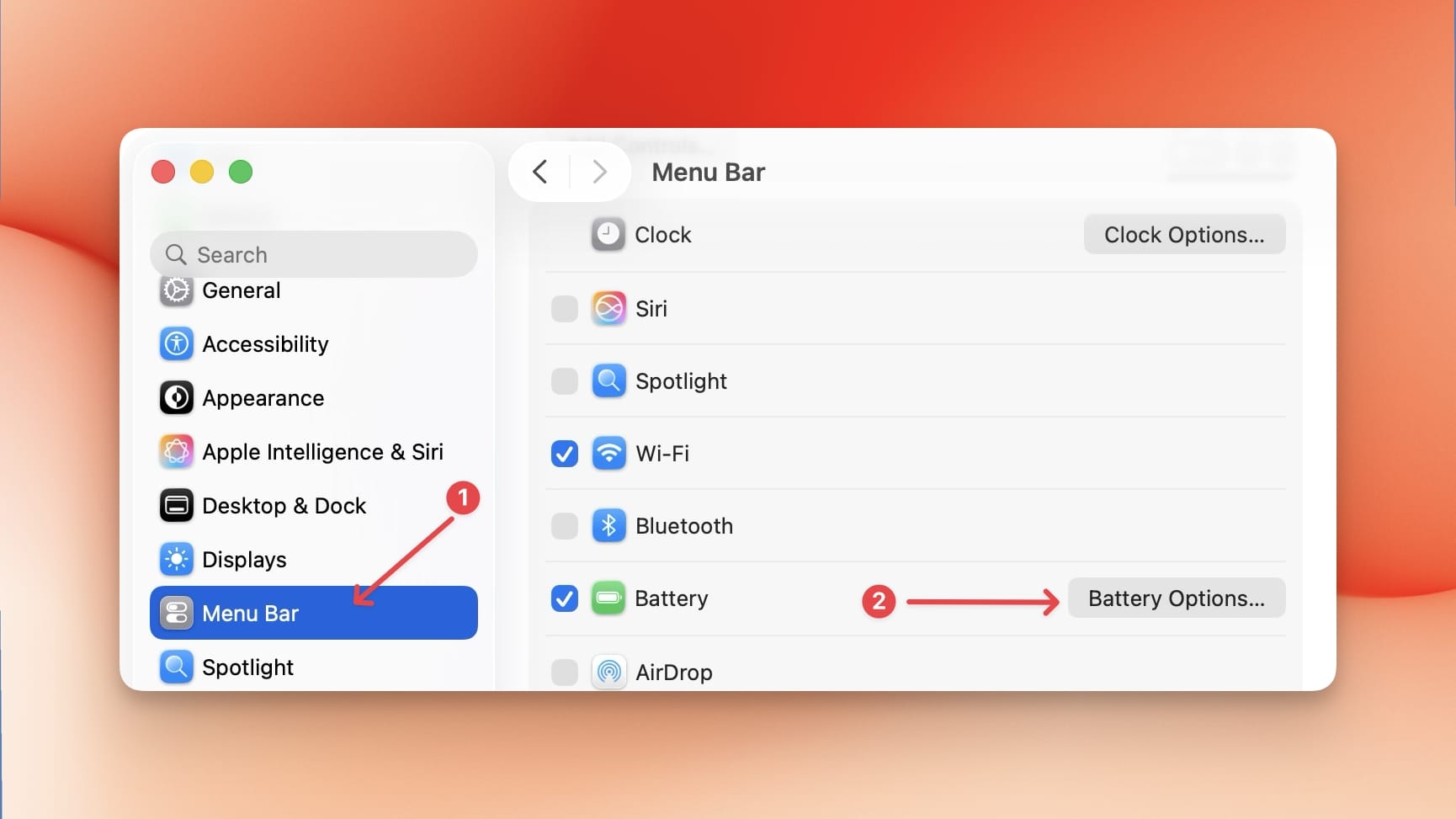
2. Open the Menu Bar settings and click on Battery Options.. next to the battery icon.
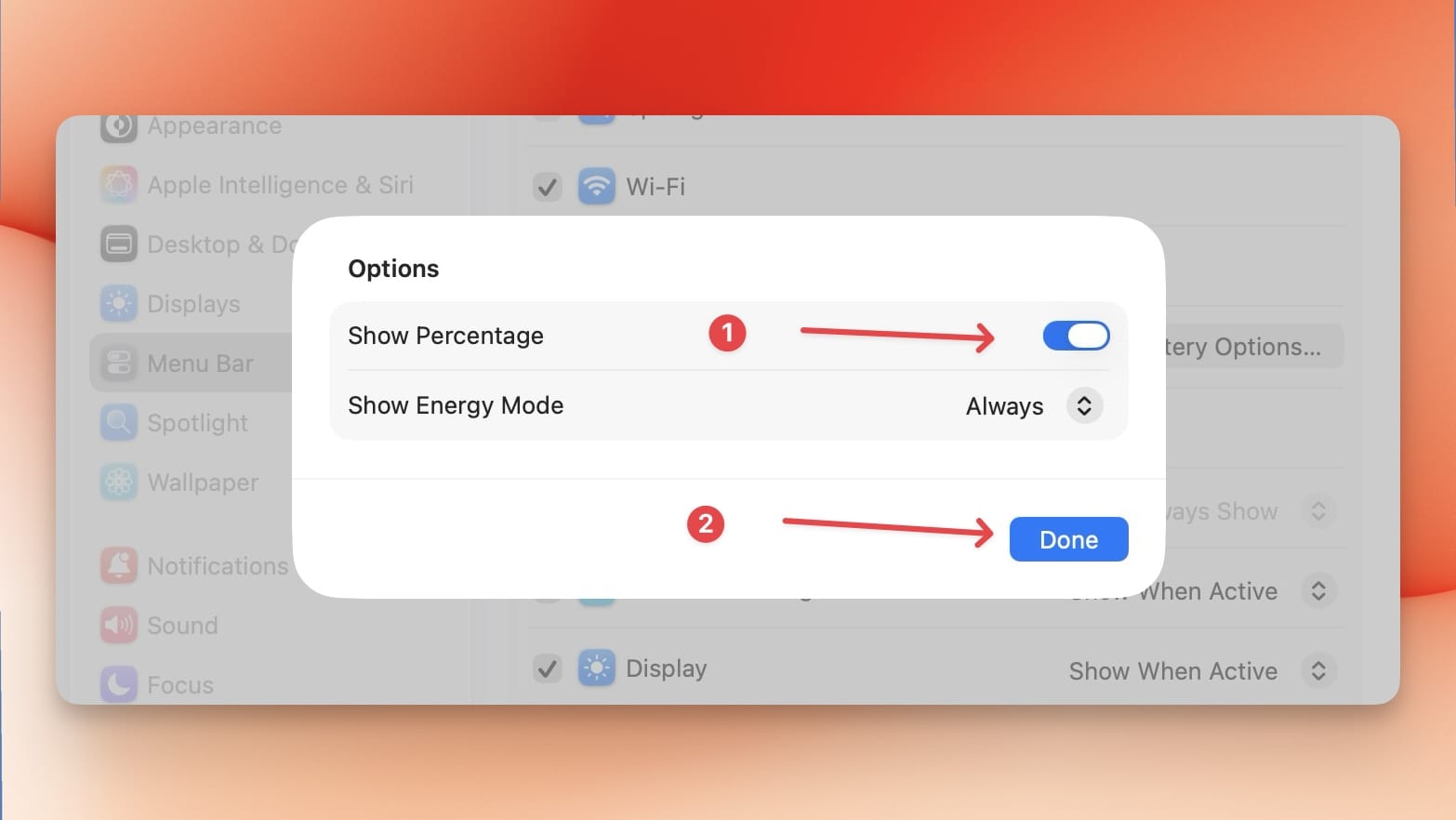
3. Turn on the toggle for Show Percentage and hit the Done button to save changes.
macOS Tahoe also allows you to set an 80% battery charge limit on Mac. Click the link to learn how.
Show battery percentage in Mac Menu Bar in macOS Sequoia
Apple replaced the old System Preferences app with the new System Settings app starting with macOS Ventura, and the layout has remained the same through macOS Sequoia and macOS Sonoma. So whether you are running Ventura, Sonoma, or Sequoia, the steps below will work for you.
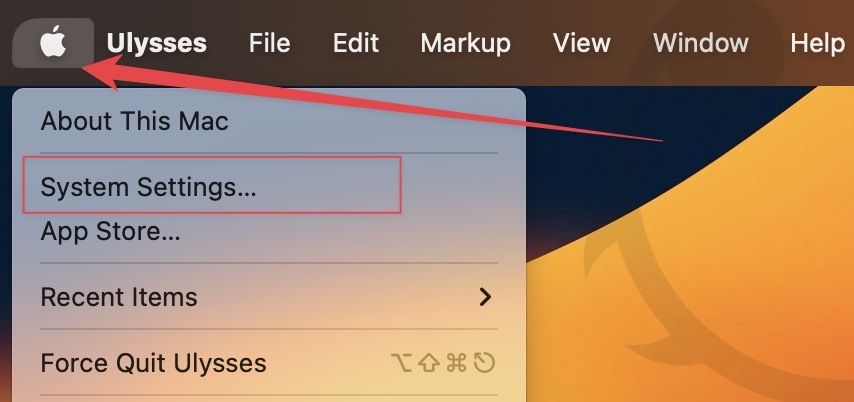
1. Use the Apple Menu to open System Settings.
2. Scroll down the left sidebar to find Control Center and click to select it.
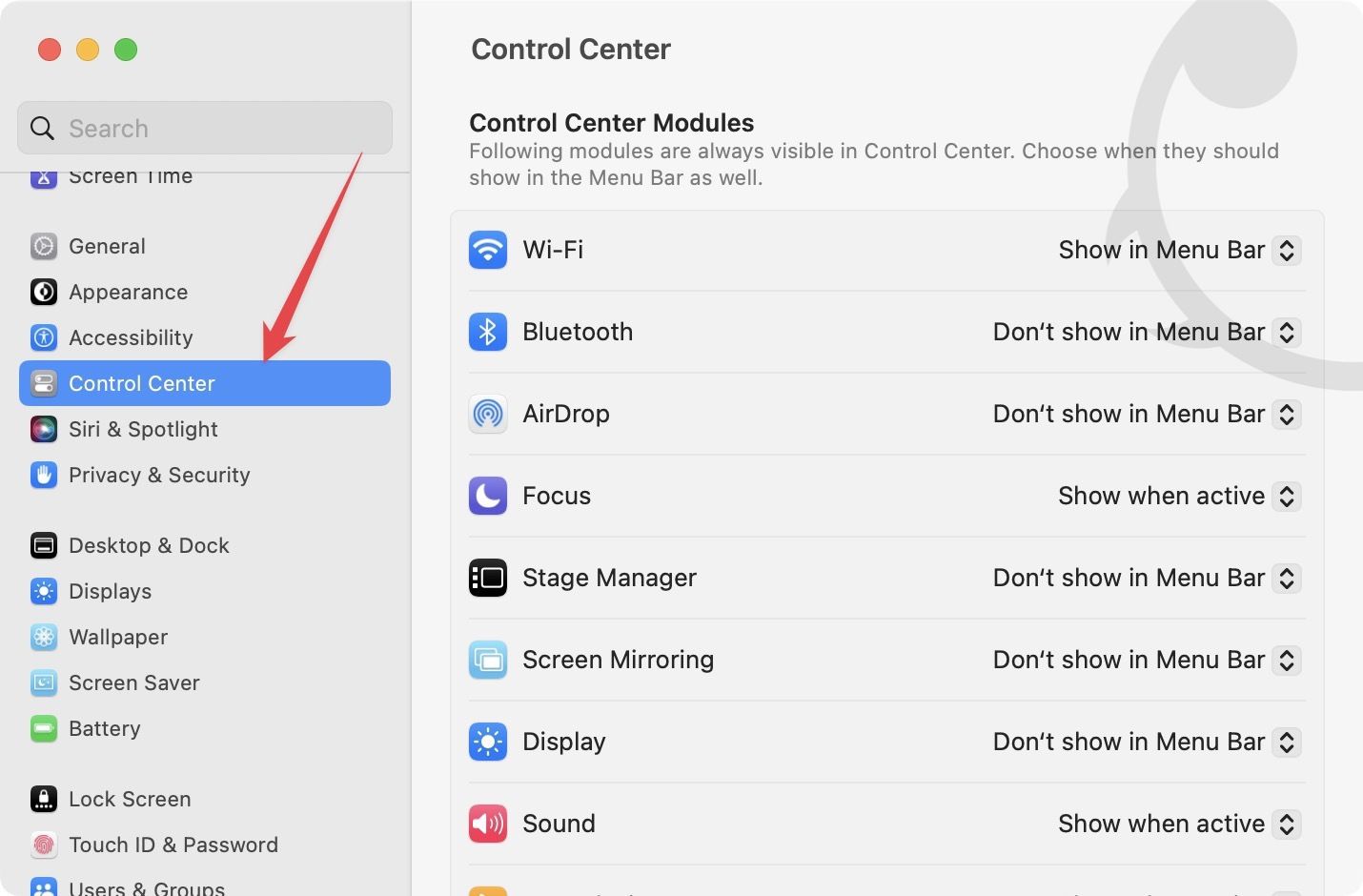
3. Now, scroll down the right sidebar until you see the Battery section.
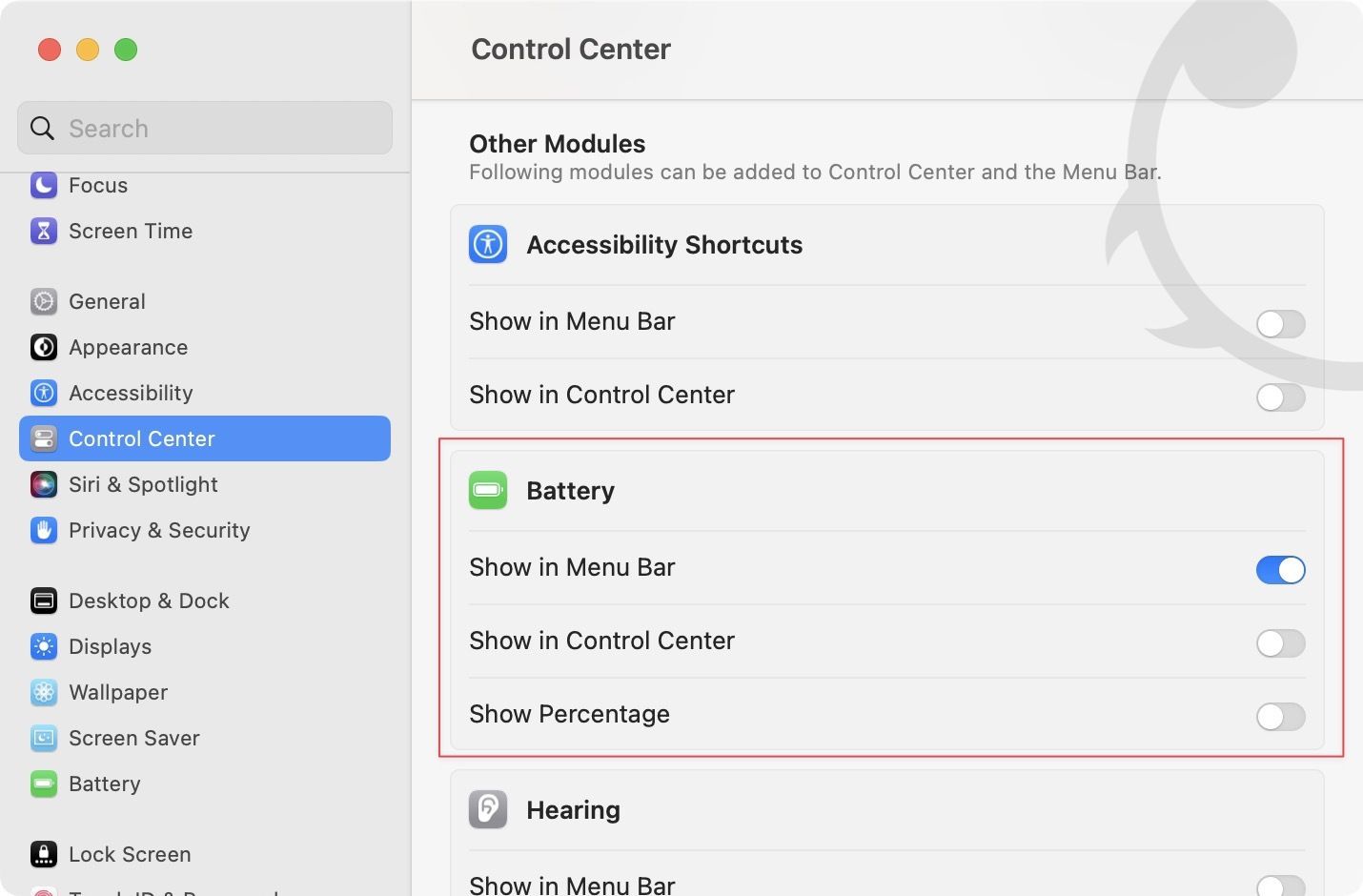
4. Here, enable the toggle next to Show Percentage.
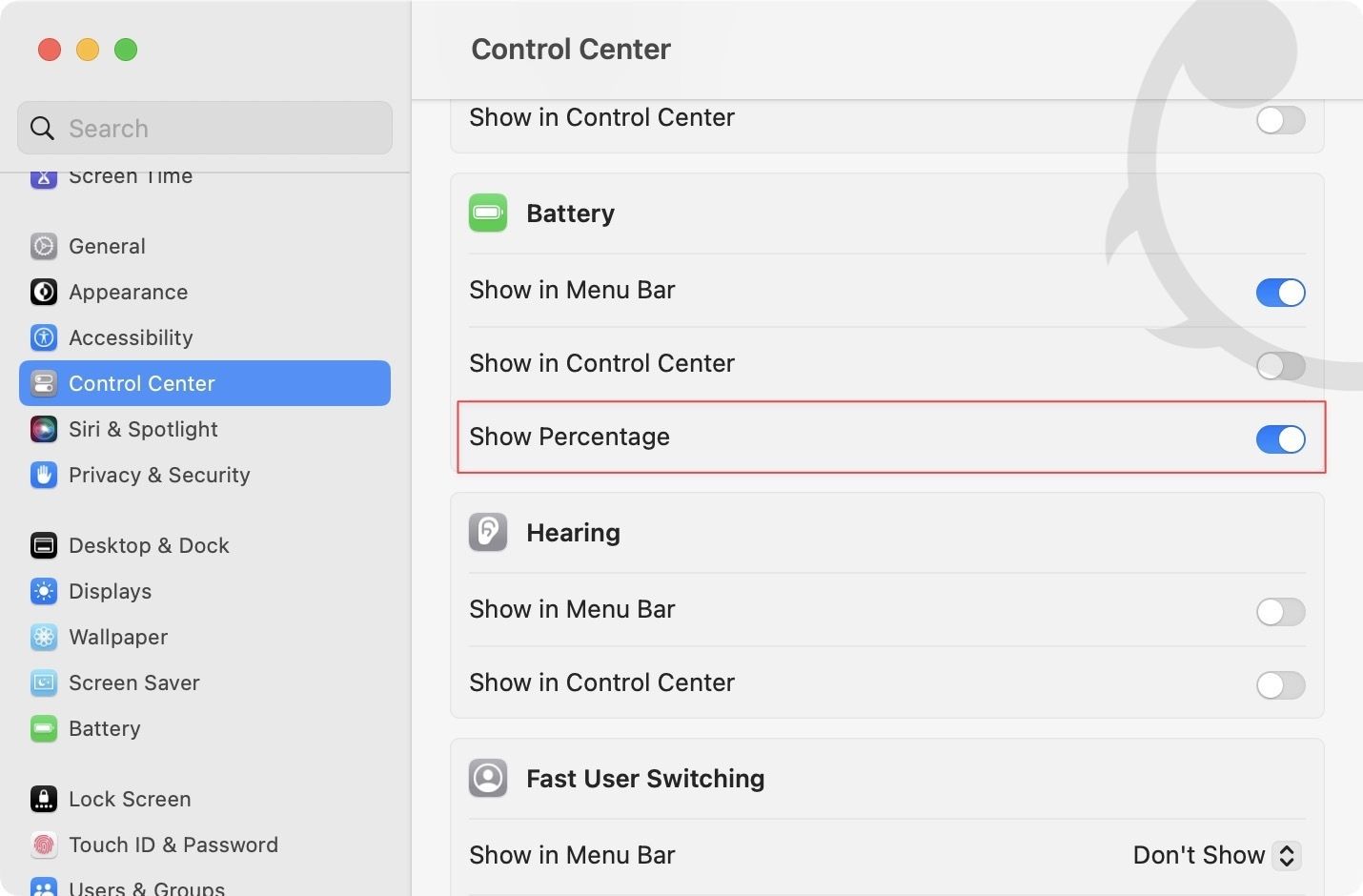
5. As you can see, the Menu Bar is now showing the exact battery percentage.

Show battery percent in Mac in macOS Big Sur and below
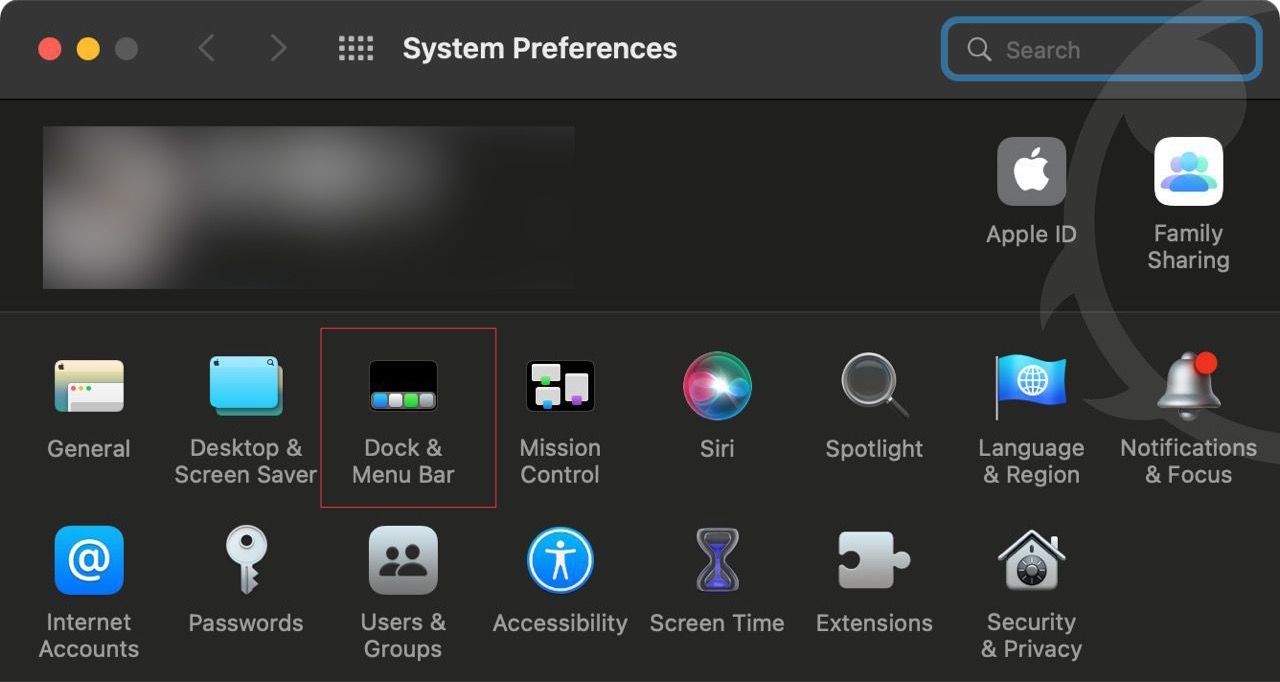
1, Use the Apple Menu to launch the System Preferences app.
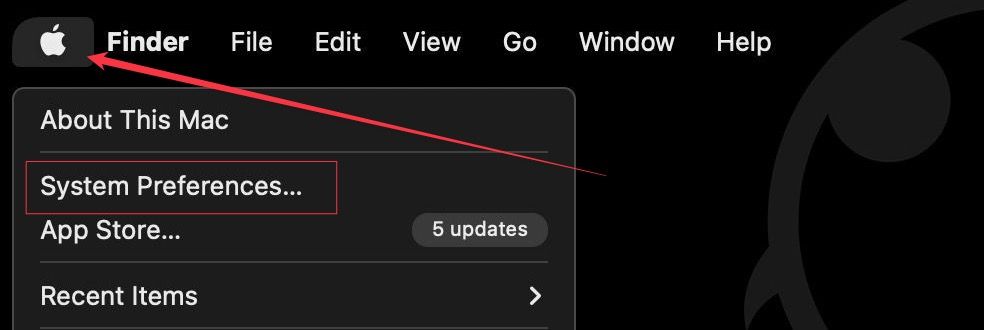
2. Click to open the Dock & Menu Bar setting.
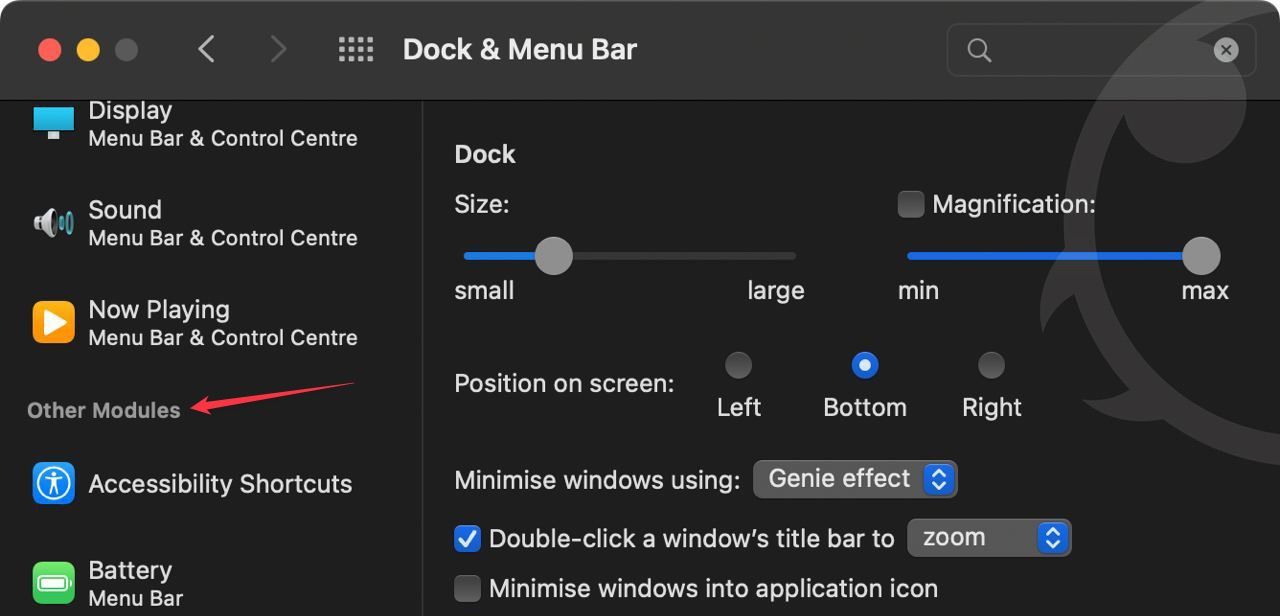
3. Scroll down the left sidebar until you see the Other Module section.
4. Select the Battery option and enable the toggle next to Show Percentage.
Display battery percentage in macOS Menu Bar
The move from System Preferences to System Settings took some getting used to, but after spending a few months with it, you get used to the new layout. Tahoe shakes things up a little further, but once you know where to look, it's just as straightforward. Let us know in the comments if you have any questions.